
Attributes and types
Everything in a Quest Viva game - a room, an object, an exit, a command, the game itself - is an element, and an element is nothing more than a collection of named values called attributes. The editor’s tabs are friendly front ends onto those attributes: when you tick “Object can be taken” on the Inventory tab, you are setting a boolean attribute called take.
An object type is a named bundle of attributes that any number of objects can share. This page explains how the two fit together: where an attribute’s value actually comes from, what happens when an object and its type both define the same attribute, and why lists on a type behave differently from everything else.
For the scripting side of types - testing a value’s type, converting between them, what an unset attribute does in a condition - see Values and types. For creating and applying your own types in the editor, see Creating and using object types.
Attributes
Section titled “Attributes”An attribute has a name, a value, and belongs to one element. You read one in a script with a dot:
msg ("The hat costs " + hat.price + " gold.")and in the text processor with braces: The hat costs {hat.price} gold.
A few attribute names are reserved, because Quest Viva uses them to keep track of what things are: name, type and elementtype can’t be changed during play, and only name can be changed in the editor. Everything else is yours, and you can add, change and remove attributes freely, both in the editor and while the game is running.
The Attributes tab shows an element’s attributes exactly as the engine sees them: an Inherited types list at the top, then the attributes themselves. Attributes the object gets from a type are greyed out, and the Source column - or the “Inherited from…” line beside the value - names the type each one came from.
What a value can be
Section titled “What a value can be”| Type | Example |
|---|---|
| String | "a bowler hat" |
| Integer | 12 |
| Double | 0.4 |
| Boolean | true |
| Object | hat |
| List | Split("a;b", ";") |
| Dictionary | NewStringDictionary() |
| Script | a block of script commands |
| Null | nothing at all - the attribute isn’t set |
On the Attributes tab, a new attribute starts as a string and you pick its type from the dropdown beside its value. Values and types covers each type, how to find out what type a value is with TypeOf, and how null behaves.
Object types
Section titled “Object types”A type is a <type> element holding attributes, written the same way an object’s attributes are. Objects - and other types - inherit from it:
<type name="food">  <health type="int">0</health>  <eat>It looks tasty, but you're not hungry right now.</eat></type>
<type name="fruit">  <inherit name="food"/>  <health>10</health></type>
An object that inherits fruit has a health of 10 and the eat message from food, without either attribute being written on the object.
The attributes are not copied. The object keeps a reference to the type and looks the value up when it needs it, which is why lists and dictionaries on a type need care (see below).
A type is not an object, so you can’t reach one from a script the way you can an object: spell.learnmsg = "..." fails with “Unknown object or variable ‘spell’”. Types are set up in the editor, and read through the objects that inherit them.
Types you are already using
Section titled “Types you are already using”You don’t have to write a type to be using them. Several of the editor’s dropdowns are type pickers:
- the Setup tab’s Type dropdown chooses between
editor_roomandeditor_object- that is the only difference between a room and an object - the character dropdown on the same tab (“Male character”, “Female character (named)”, “Inanimate objects (plural)”) sets
male,namedfemale,pluraland friends, which carry the right gender, article and possessive words - the Container tab’s Container type sets
container_open,container_closed,surfaceoropenable - the Switchable and Edible tabs, which appear once you tick those options on the object’s Features tab, set the
switchableandedibletypes
Where a value comes from
Section titled “Where a value comes from”When a script asks for hat.price, Quest Viva looks in this order:
- the object’s own attributes
- each of the object’s inherited types, most recently added first - and within each one, the types it inherits, before moving on to the next
The first attribute found wins. So setting an attribute on the object always shadows the type’s value, for that object only:
ball.colour = "blue" // ball now has its own colour; other objects of the type are unaffectedSetting it back to null doesn’t leave the object with no colour - it removes the object’s own copy, so the lookup falls through to the type again:
ball.colour = nullmsg (ball.colour) // prints the type's colour once moreThe same is true of removing the attribute on the Attributes tab. HasAttribute and GetAttributeNames(obj, true) count inherited attributes; GetAttributeNames(obj, false) lists only the object’s own.
If two types define the same attribute, the type added to the object most recently wins. There is no need to guess which: the Attributes tab’s Source column names the type the value in force came from.
Default attributes for every object
Section titled “Default attributes for every object”If a type is called defaultobject, it applies to every object in the game without anything inheriting it. Core.aslx uses this to set the defaults you never have to think about:
displayverbsandinventoryverbs, which give the buttons on the panes beside the game (“Look at” and “Take” in the objects list, “Look at”, “Use” and “Drop” in the inventory)drop, so objects can be dropped- the neutral
gender,articleandpossessive(“it”, “it”, “its”) - container attributes such as
isopenandcontainer, set to false rather than left unset, which keeps the container logic simple
There are matching defaultexit, defaultcommand, defaultturnscript and defaultgame types. You can override any of these defaults on an individual object in the usual way, or on the default type itself - see Overriding Core library functions.
Mutable attributes on inherited types
Section titled “Mutable attributes on inherited types”Most values are replaced wholesale when you assign to them, so inheritance causes no trouble. Lists and dictionaries are different: they can be changed in place by commands like list add, and the object is pointing at the type’s list, not a copy of it.
If a type spell has a list attribute words, and fireball inherits spell, then list add (fireball.words, "zap") would be adding to the list on the type - changing it for every spell in the game. To stop that happening by accident, mutable attributes defined on a type are locked. That script raises an error:
Cannot modify the contents of this list as it is defined by an inherited type. Clone it before attempting to modify.
The fix is to give the object its own copy first. Quest Viva clones lists and dictionaries on assignment, so objectA.list = objectB.list gives objectA a clone it can change freely without touching objectB. The same trick works on an inherited attribute:
fireball.words = fireball.wordslist add (fireball.words, "zap")That looks like assigning something to itself, but the right-hand side reads the type’s list and the assignment clones it onto the object. From then on fireball has its own words.
If a list on a type will never change during play - a set of valid answers, say - leaving it on the type is fine and saves memory. If it will change per object, either clone it as above or set it up on each object instead.
Seeing attributes while you play
Section titled “Seeing attributes while you play”The Debugger shows every attribute of every object as the game runs, with a Source column saying where each value comes from. Click Debug at the top of the player while previewing your game. Inherited attributes are greyed, exactly as in the editor.
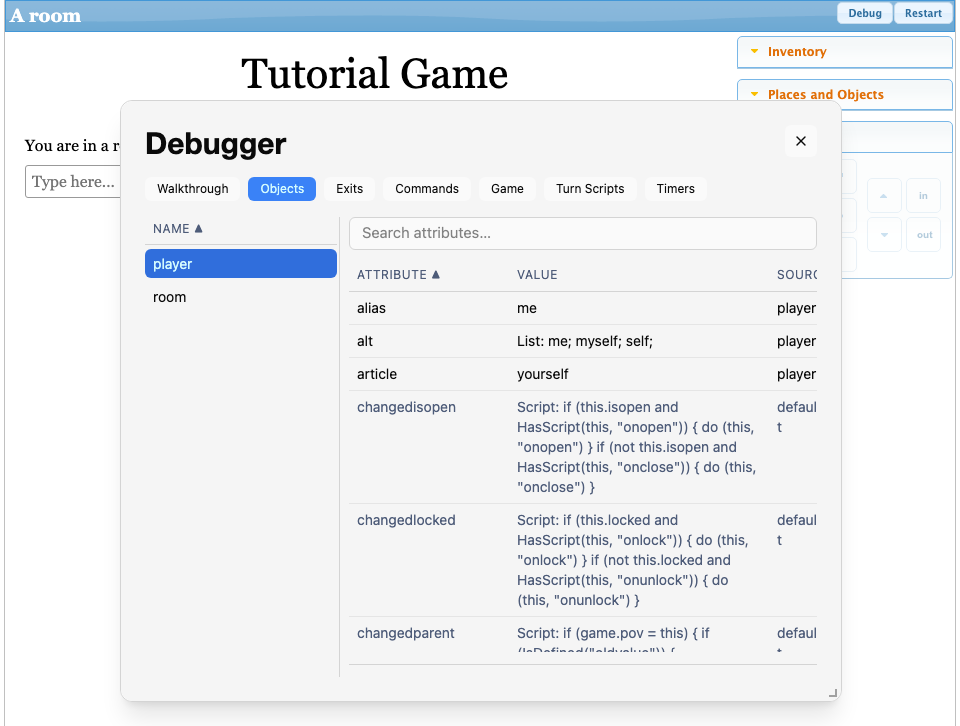
See Debugging your game for the rest of what it does.
See also
Section titled “See also”- Creating and using object types - making your own
- Values and types - types in scripts, and null
- type element and attribute reference
- Change scripts - running a script whenever an attribute changes