
Containers, locks and doors
Our kitchen has flour, eggs and sugar lying about on the floor, which is not how most kitchens work. In this section we’ll put them in a cupboard the player has to open, and then use the same machinery to lock the back door and give the player a key to find.
Making a container
Section titled “Making a container”Create an object called “cupboard” in the kitchen, with a description like “A chipboard cupboard above the worktop.”
Containers are a feature, like Switchable was, so go to the cupboard’s Features tab and tick “Container: object is a container or surface, or can be opened and closed”. A Container tab appears.
On the Container tab, “Container type” starts at “Not a container”. Change it to Closed container - a container the player can open and close, which starts closed. The rest of the tab appears once you’ve chosen.
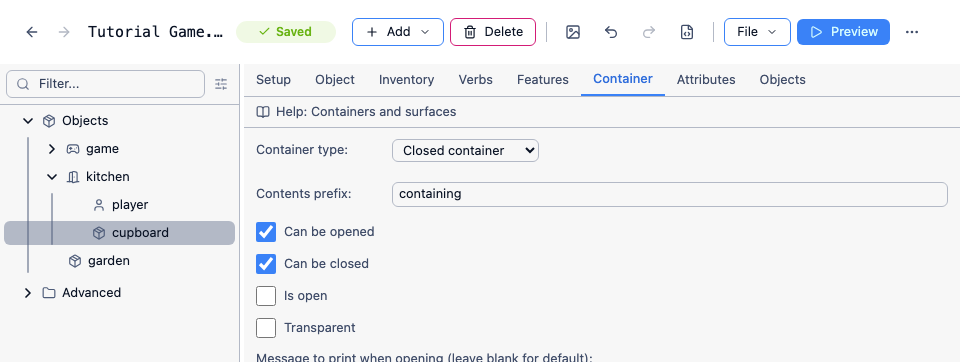
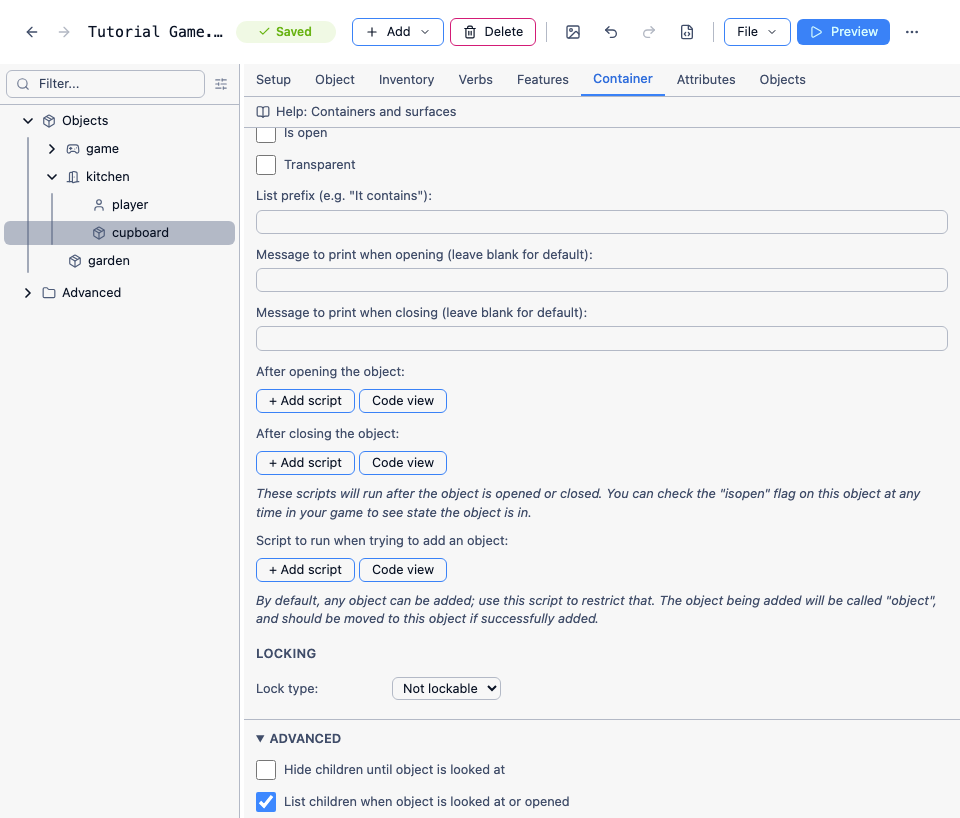
There’s one more setting worth having. Open the Advanced section at the bottom of the tab and tick “List children when object is looked at or opened”. Without it, the player is told what’s inside in brackets after the cupboard’s name; with it, they get a sentence of its own when they open it, which reads much better.
Putting things in it
Section titled “Putting things in it”The flour, eggs and sugar already exist, so we just need to move them. In the tree, click the “⋯” button next to “flour” and choose “Move to…”, then pick “cupboard”. Do the same for the eggs and the sugar.
Play the game and go to the kitchen. The three objects have gone - LOOK AT FLOUR gets “I can’t see that”. Open the cupboard, and there they are:
> open cupboardYou open it.It contains some flour, some eggs and some sugar.(If yours says “a flour, an eggs and a sugar”, set each object’s prefix to “some”: untick “Use default prefix and suffix” on the Setup tab, and type some in the prefix box. We looked at prefixes back when we created Bob.)
A Closed container is only one of the choices on that tab. A Surface is a table or a shelf - things sit on it in plain view, and it can’t be opened or closed. A Limited container is a bag that only holds so much. And Openable/Closable is for something that opens and closes but never holds anything, like a door - we’ll use that one in the next section. Containers and surfaces covers all of them, and everything else on the tab.
A locked exit
Section titled “A locked exit”Now for a way out of the house. Add a room called “garden”, with a description like “Fresh air at last. The grass needs cutting, but it is a beautiful afternoon.”
Go to the kitchen’s Exits tab, click “South”, choose “garden” from the drop-down, leave “Also create exit in the other direction” ticked, and click “Create” - exactly as we did for the lounge and the kitchen in the first section.
Now select that new south exit in the tree. On its Exit tab, tick Locked, and in “Print message when locked” type “The back door is locked.”
A locked exit still shows up in the room description and on the compass - the player can see there’s a way south - but they can’t use it:
> southThe back door is locked.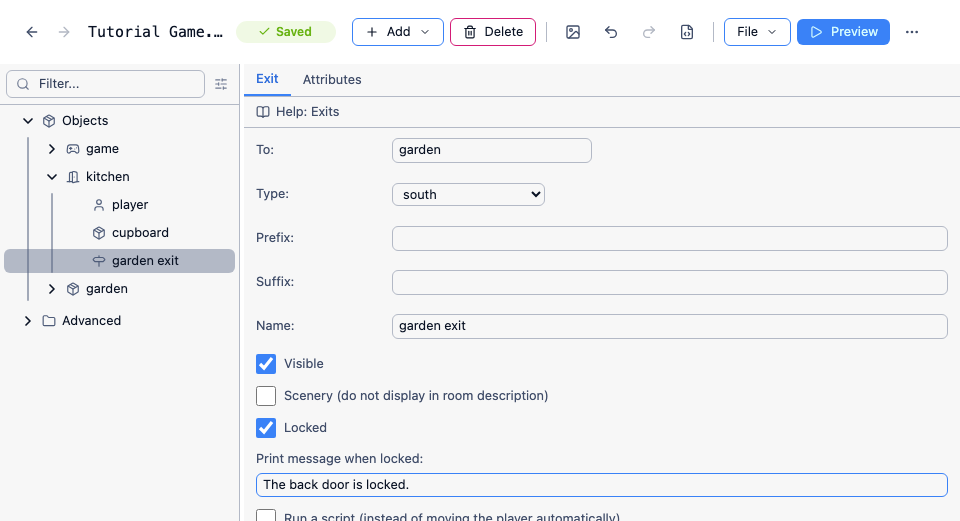
The exit also needs a name, so that a script can refer to it later. Exits don’t normally have one, and the editor reminds you when you tick “Locked”. Type garden exit into the Name box.
A key to unlock it
Section titled “A key to unlock it”Add an object called “brass key” inside the cupboard, and tick “Object can be taken” on its Inventory tab. Now the player has a reason to open the cupboard.
The key needs something to unlock. Quest Viva’s built-in key handling works on objects rather than exits, so add an object called “back door” to the kitchen, and tick “Scenery” on its Setup tab so that it isn’t listed separately in the room description - we’ve already mentioned the back door in the kitchen’s description.
Go to the back door’s Verbs tab, click “Add” and type “unlock”. Set its Behaviour to “Run a script”. Switch the script to Code View and type:
if (Got(brass key)) { msg ("You unlock the back door with the brass key.") UnlockExit (garden exit)}else { msg ("It is locked, and you do not have the key.")}Got is true if the player is carrying the object. UnlockExit unlocks an exit by name - which is why the exit needed one. (There’s a matching LockExit if you ever want to lock it again.)
Play the game through and check the whole sequence works:
> southThe back door is locked.
> unlock doorIt is locked, and you do not have the key.
> north...
> open cupboardYou open it.It contains some flour, some eggs, some sugar and a brass key.
> take keyYou pick it up.
> unlock doorYou unlock the back door with the brass key.
> southYou are in a garden.
Real doors
Section titled “Real doors”What we’ve built is the simplest thing that works: a locked way through, and something the player can unlock. The door itself isn’t really there - the player can’t open it, close it, or see it from the garden side.
If you want a door the player can open, close, lock and unlock from either side, make the door an “Openable/Closable” object with a key of its own, and have the exits on both sides check whether it’s open. Doors, locks and keys shows how, along with combination locks and other ways of blocking a way through.
Exercise
Section titled “Exercise”The cupboard door is a little too easy to spot. Give the cupboard a lock as well: on its Container tab, under “Locking”, set “Lock type” to “Lockable”, set the number of keys to 1, choose an object for the key, and tick “Locked”. Then hide that key somewhere - under the sofa cushions, perhaps, using what we learned about scenery objects and descriptions.
This time you don’t need a script at all. UNLOCK CUPBOARD and OPEN CUPBOARD are handled for you, including telling the player when they haven’t got the key.