
Score and winning
Our game now has everything a game needs except the two things that make it a game: a way of doing well, and a way of finishing. Let’s add both.
Turning on the score
Section titled “Turning on the score”You could keep a score yourself, in an attribute called “score” on the player, and add to it with “Set a variable or attribute”. You don’t have to - Quest Viva has a score built in.
Select the game object at the top of the tree, go to its Features tab, and tick “Score”. That’s the whole setup. Play the game, and there’s a “Score: 0” in the status pane on the right.
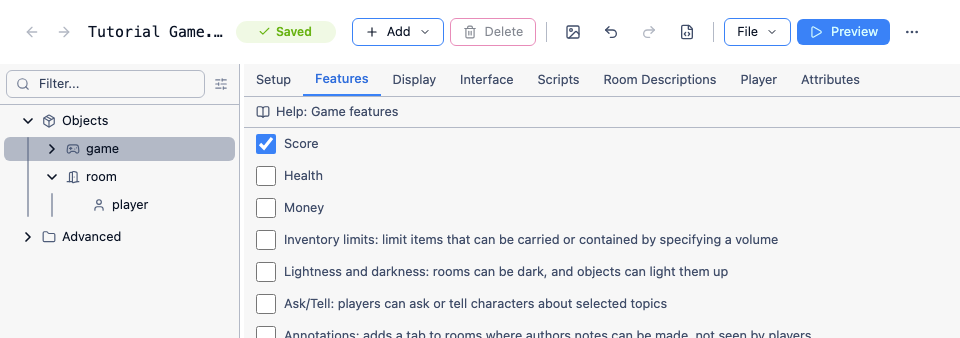
Ticking the feature also adds two new script commands to the “Player” category: “Increase score” and “Decrease score”. Each one takes the number of points.
Awarding points
Section titled “Awarding points”We’ll give the player ten points for escaping the house, spread over the three things they have to work out.
Reviving Bob - 2 points. Open the “revive bob” function we wrote earlier and add “Increase score” with a value of 2, after the message. Because that function already checks Bob’s “alive” flag before doing anything, it can only run once, so the points can only be awarded once.
Opening the cupboard - 2 points. Go to the cupboard’s Container tab and find “After opening the object”. This isn’t so safe: the player can close the cupboard and open it again as many times as they like, and we don’t want to hand out two points each time.
The fix is a script command called “First time…”, in the “Scripts” category. Whatever you put inside it runs once, the first time that script command is reached, and is skipped ever after. Add it, then add “Increase score” with a value of 2 inside it. In Code View, that’s:
firsttime { IncreaseScore (2)}Unlocking the back door - 3 points. Go back to the back door’s “unlock” verb and add the same thing inside the branch that succeeds:
if (Got(brass key)) { msg ("You unlock the back door with the brass key.") UnlockExit (garden exit) firsttime { IncreaseScore (3) }}else { msg ("It is locked, and you do not have the key.")}Here the firsttime isn’t strictly necessary - once the exit is unlocked there’s no reason to unlock it again - but the player can still type UNLOCK DOOR a second time, and firsttime means we don’t have to think about whether that matters.
Ending the game
Section titled “Ending the game”The last three points are for getting out. Select the garden, go to its Scripts tab, and find “After entering the room”. Add:
IncreaseScore (3)msg ("You step out into the garden and close the door behind you.")msg ("")msg ("<b>You have escaped the house, with " + game.score + " points out of 10.</b>")finish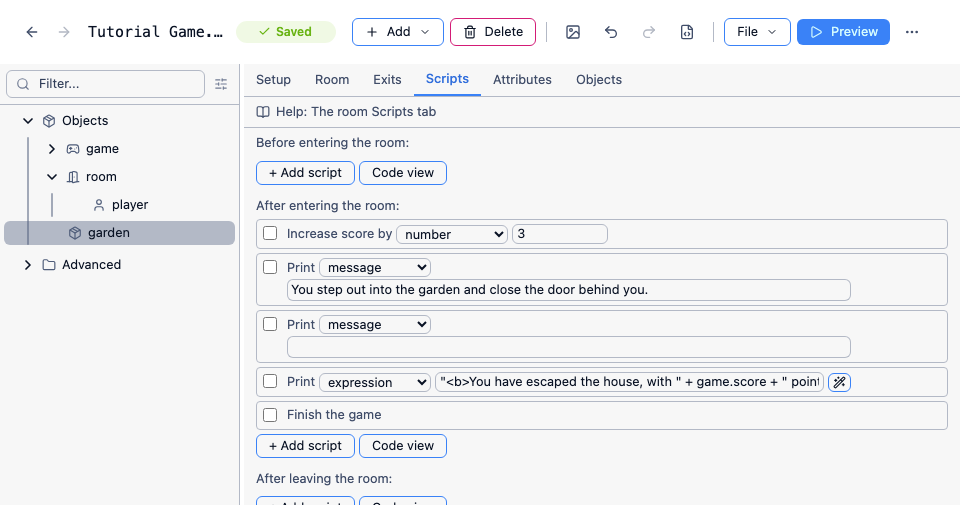
finish ends the game - it’s “Finish the game”, in the “Game State” category. The command box disappears, the panes are replaced with “Game Over”, and there’s nothing more the player can do but restart. It prints nothing by itself, so say whatever the player should read before it, as we have here. Anything after finish still runs, so it belongs at the end of the script.
game.score is where the score feature keeps its value, and we can read it in an expression like any other attribute. (Note that it belongs to game, not to the player - so it survives if your game ever switches the player to a different character.)
Play the game through and check you reach the garden with ten points:
> southYou are in a garden.Fresh air at last. The grass needs cutting, but it is a beautiful afternoon.You step out into the garden and close the door behind you.
You have escaped the house, with 10 points out of 10.
Losing
Section titled “Losing”finish doesn’t know or care whether the player won - it just stops the game. A bad ending is the same script command with a different message before it, and that’s all there is to it:
msg ("The bee, it turns out, was not a bee. You have died.")finishIf you want the game to end when something runs out rather than when the player does something, the built-in Health feature is worth a look. Tick it on the same Features tab and you get “Health: 100%” in the status pane, IncreaseHealth and DecreaseHealth commands, and a “Script to run when health reaches zero” on the game’s Player tab - which is the natural place to print a death message and call finish. There’s a Money feature too, which works the same way and adds a “Price” box to every object.
Showing more in the status pane
Section titled “Showing more in the status pane”Ticking Score added “Score: 0” to the status pane for us. That pane isn’t only for the built-in features - you can put any attribute of the player or the game object there, with your own wording around it. We’ll do exactly that in the next section, to show the player how many turns they’ve taken.
See also
Section titled “See also”- Score, health and money - the three built-in features in full, including achievements the player can earn more than one way
- Status attributes - the format strings for the status pane