
Turns and timers
Everything our game does so far happens because the player did something. Games also need things that happen by themselves: a character who wanders off, a candle that burns down, a bee that won’t leave you alone.
Quest Viva measures time in two ways, and it matters which you pick:
- Turns pass when the player does something. A turn script runs at the end of every turn.
- Real seconds pass whatever the player is doing. A timer runs every so many seconds.
Turns are almost always the better choice. A player who stops to think, reads slowly, or uses a screen reader loses nothing, and the game plays out the same way every time. We’ll start there.
A turn script
Section titled “A turn script”Let’s count the turns the player has taken, and show the count in the status pane.
The attribute
Section titled “The attribute”Select the “player” object and go to its Attributes tab. In the Attributes table at the bottom, click “Add”, enter the name turns, choose “Integer” from the list, and leave the value at 0.
Now we need to tell Quest Viva to display it. The Status Attributes table at the top of the same tab is the list of attributes shown in the status pane on the right. Click “Add” there, and give it two things:
- the name of the attribute -
turns, spelled exactly as before, because Quest Viva has to match the two up - the format used to display it, in which an exclamation mark stands for the value
Leave the format blank and you’ll get a sensible default. Type this instead:
Turns: !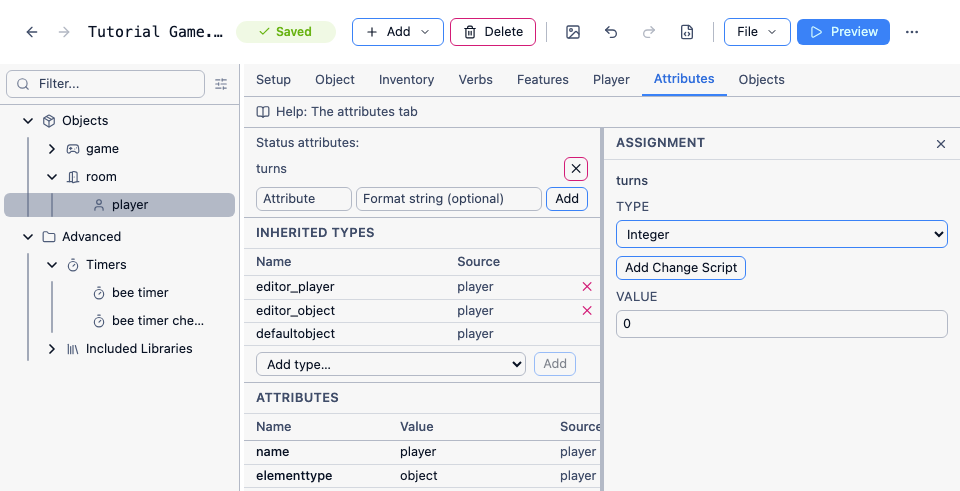
Play the game and the status pane now shows “Turns: 0” underneath the score. It will stay at 0, because nothing increases it yet.
Any attribute of the player or of the game object can go in this list - a mood, a name, a reputation, anything you are keeping track of. It works best with numbers and short strings. This is the same machinery the Score feature used when we ticked it on; it simply added its entry for us.
The script
Section titled “The script”Click “+ Add” on the toolbar and choose “Add Turn Script”. A turn script created inside a room only runs while the player is in that room, which is genuinely useful, but ours should run everywhere - so use “Move to…” on it in the tree and pick the “Objects” label at the very top.
Make sure “Enabled when the game begins” is ticked. The Name box is optional; you only need one if you want to switch the turn script on and off from a script. Leave it blank.
For the script itself, add “Set a variable or attribute”. In the left box type:
player.turnsand in the right box:
player.turns + 1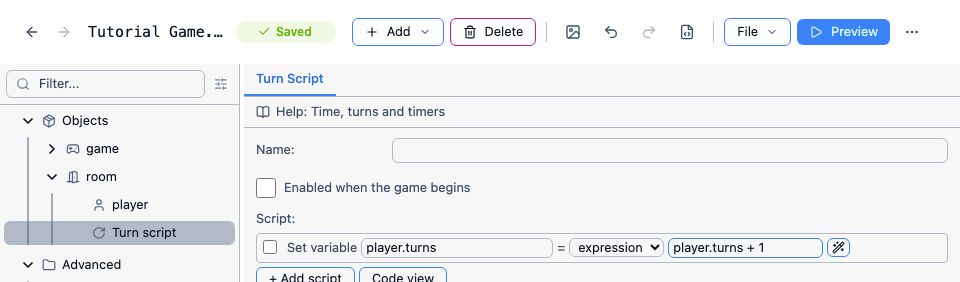
Play the game and watch the counter go up as you type commands.
Something happening a few turns from now
Section titled “Something happening a few turns from now”A turn script that runs forever is one thing. More often you want a single event, a few turns after something the player did - the guard comes back, the fuse burns down, the potion wears off.
The script command for that is “Run script after a number of turns”, in the “Turn Scripts” category, and in code it’s SetTurnTimeout. Everything inside it runs once, when the turns are up.
Try it on the bin in the kitchen. Give it a “smell” verb, set to “Run a script”, and in Code View:
msg ("You lean over the bin and inhale. This was a mistake.")SetTurnTimeout (3) { msg ("You can still taste that bin.")}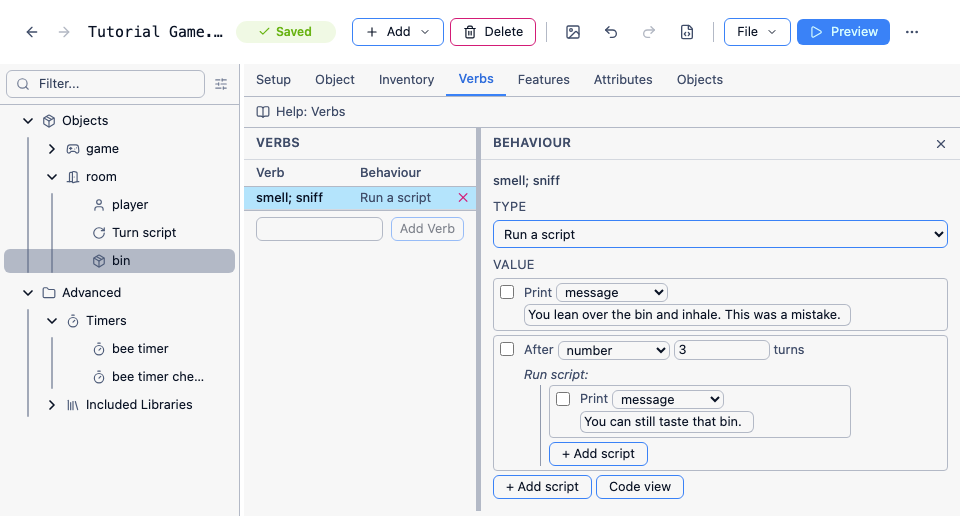
Smell the bin, then type two more commands, and the second message arrives at the end of the second. The turn you set it on counts as the first of the three, which is why it’s two commands and not three - and why SetTurnTimeout (1) runs the script at the end of the current turn.
Real-time timers
Section titled “Real-time timers”Now the bee. Every 20 seconds of real time, it should buzz past the player.
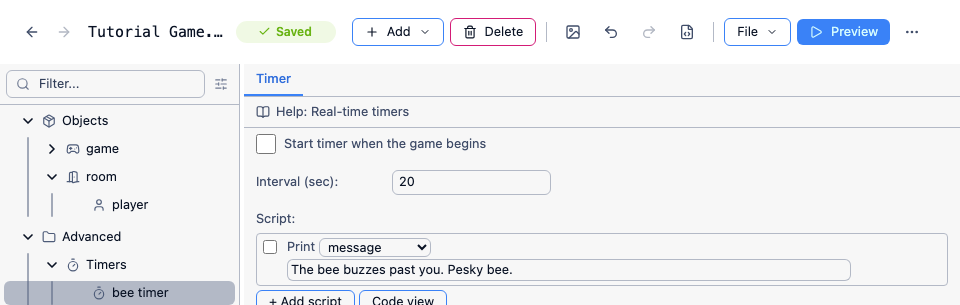
Click “+ Add” and choose “Add Timer”. Call it “bee timer”. Set the Interval to 20 - that’s in seconds - and leave “Start timer when the game begins” unticked, because there’s no bee until the player opens the window.
For the timer’s script, add “Print a message” with something like “The bee buzzes past you. Pesky bee.”
Now go back to the window in the kitchen and find the “Script to run when opening object” we wrote. In the branch that moves the bee into the kitchen, add “Enable timer” from the “Timers” category, and choose “bee timer”.
Play the game, go to the kitchen, open the window, and wait. Every 20 seconds, the message appears.
Then walk north to the lounge and wait again - and the bee is apparently following you through the house. The timer doesn’t know where the player is; it just runs. So we need to tell it. Go back to the timer’s script and wrap the message in an “If” with the condition “player is in room”, choosing the kitchen:
if (game.pov.parent = kitchen) { msg ("The bee buzzes past you. Pesky bee.")}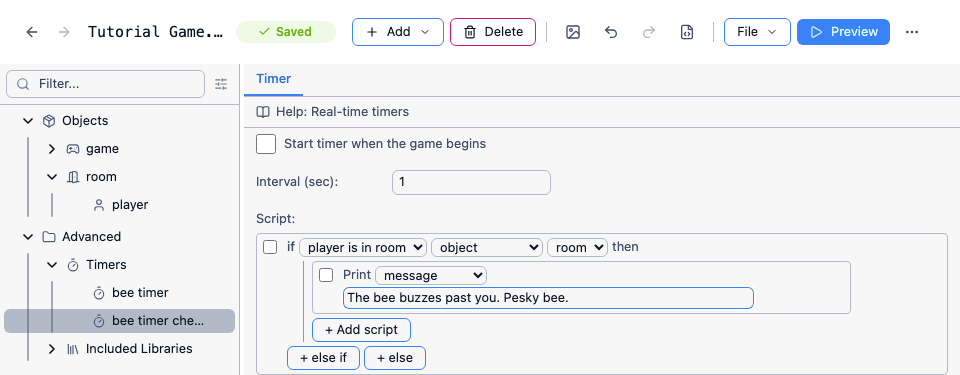
game.pov is the object the player is currently playing as, and its parent is the room they’re in. Play again and the bee stays in the kitchen where it belongs.
Timers have a matching “Disable timer” command, and there’s “Run script after a number of seconds” (SetTimeout) for a one-off event in real time, exactly like SetTurnTimeout but measured in seconds.
A word about real time
Section titled “A word about real time”Now that you’ve seen both, here’s the advice: reach for turns first.
Real time is right for atmosphere - a bee, a dripping tap, a distant church bell. It’s a poor choice for anything the player can lose by. A puzzle with a ten-second fuse punishes people who read slowly, use a screen reader, or get up to answer the door, and none of that has anything to do with how well they’re playing your game. The same puzzle with SetTurnTimeout (3) - three moves to get out - is just as tense and much fairer.
See also
Section titled “See also”- Time, turns and timers - turn scripts, timers, game clocks and turn counters in full
- When scripts run - every moment in a turn that you can attach a script to