
Keeping track
At the end of Pages and links The Lighthouse had a problem. The Hall page says the lantern lights up the room, whether or not the reader picked one up, and either way they can climb ninety-one pitch-dark steps.
To fix that, the game has to remember what the reader has done. Quest Viva gives a gamebook two things to remember with:
- a flag, which is either set or not - did they take the lantern?
- a counter, which is a number that goes up and down - how boldly have they behaved?
Neither needs any programming. Both are set by picking a command from a list, and read by typing a few characters into your text.
Setting a flag
Section titled “Setting a flag”Select the TakeLantern page and change its Page type from “Text” to Script + Text. A “Script” box appears above the description. The page still shows its text and links exactly as before - it just runs the script first.
Click “+ Add script”, choose the Variables category, and pick Set flag on. Type lantern in the box.
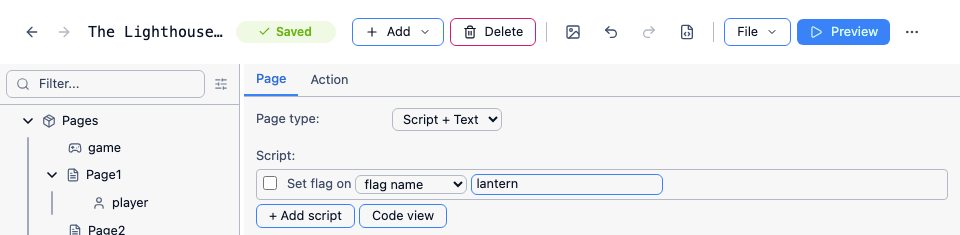
That is the whole of it. From now on, anywhere in the game, the flag lantern is set.
The name is yours to choose, and you will be typing it again in a moment, so keep it short and lower-case. Set flag off is there for when something is lost, used up or taken away.
Reading a flag in your text
Section titled “Reading a flag in your text”Now the Causeway page can notice. Put this at the end of its description:
{if lantern: The lantern has survived, just.}Anything inside curly braces is an instruction rather than words for the reader. This one says: if the lantern flag is set, include this text; otherwise leave it out. Note the space after the colon - the text processor prints exactly what you give it, so without one the sentence runs into the previous full stop.
There is no “otherwise” built into {if}. When you want to say one thing or the other, write two, the second with not:
{if lantern:The lantern shows you a round room, a table, and a staircase winding up into the dark.}{if not lantern:It is too dark to see more than the shape of a staircase, somewhere ahead. You are not going up there without a light.}That is the Hall page’s whole description. Preview both routes and the room describes itself correctly either way.
You don’t have to memorise the punctuation: the Insert menu above the description box has “If…” and “If not…”, which put the braces in for you.
Options that come and go
Section titled “Options that come and go”The text is right now, but the reader can still climb the stairs in the dark. Options can be added and removed while the game runs, and that is what the other two script commands are for.
Set Hall’s page type to Script + Text as well, and remove its “Climb the stairs” option from the Options list - we are going to add it back only when it makes sense.
For the script, add an If… from the Scripts category. In the condition drop-down choose “flag is set”, and type lantern. Inside the “then”, add Add page link from the Pages category, with Hall as the page, Stairs as the destination and “Climb the stairs” as the text. Then click “Add Else” and put Remove page link inside it, for Hall and Stairs.
In Code View that reads:
if (GetBoolean(game, "lantern")) { AddPageLink (Hall, Stairs, "Climb the stairs")}else { RemovePageLink (Hall, Stairs)}The “else” matters. Without it, a reader who visits the hall with the lantern, goes back out and somehow loses it would still have the option, because the link stays until something removes it.
Preview both ways. With the lantern, the hall offers the stairs; without it, the only way is back out into the rain.
Counting
Section titled “Counting”A counter is a number kept under a name you choose, and it starts at zero without you having to set it up. The commands are in the same Variables category: Set counter, Increase counter, Decrease counter and Change counter (which takes an amount, and accepts a negative one).
The Lighthouse counts nerve. Add Increase counter with the name nerve to the script on TakeLantern, and make Knock, Back and Stairs Script + Text pages doing the same - each is a small act of bravery.
Now the ending can notice. On the Light page:
{either game.nerve > 3:You did not hesitate once.|You got there in the end.}{either} is {if}’s sibling, and the difference is that it has an “otherwise”: everything after the | is what the reader sees when the condition is false. Comparisons work with >, <, >=, <=, = and <>.
Note the game., which is the one catch. {if} knows what a bare flag or counter name means, but {either} takes a full expression, and a counter is stored as an attribute of the game - so {either nerve > 3:...} is an error.
You can do this with {if} instead, as two conditions that between them cover every case:
{if nerve>3:You did not hesitate once.}{if nerve<4:You got there in the end.}That works, but nothing stops you leaving a gap, and if the counter has never been set at all then neither condition matches and the reader sees the curly braces on screen. {either} has no gap to leave.
To show a counter’s value to the reader, use {counter:name}:
You made it with {counter:nerve} nerve to spare.A script can test a counter too: the If… condition drop-down has “counter” alongside “flag is set”, with its own comparison and value.
Text that knows where the reader has been
Section titled “Text that knows where the reader has been”Two more, which need no flags at all.
{once:...} prints its text the first time that page is shown and never again - good for a description that shouldn’t repeat itself when the reader loops back round. {notfirst:...} is the opposite.
And in a script, the If… condition “player has seen page” tests whether a particular page has been visited, so a page can react to where the reader has already been without you setting a flag on every page.
Where to stop
Section titled “Where to stop”That is genuinely everything most gamebooks need: some flags, a counter or two, and text that reads them. You can go a long way without ever writing a function, and most gamebooks never need one.
If you do want more, the whole of Quest Viva’s scripting is available to you - see Writing code and the gamebook functions reference - and the text processor page has the full list of what can go in curly braces.