
Debugging your game
As you develop your games, there will be times when things happen which you didn’t expect - usually because you’ve forgotten to set something up, or you’ve made a mistake in one of your script commands.
Fortunately, Quest Viva provides you with the Debugger, which lets you keep an eye on what’s going on inside your game while you’re testing it, and change things to try out a fix without editing the game.
Opening the Debugger
Section titled “Opening the Debugger”Click “Preview” in the editor to run your game, then click the “Debug” button at the top of the player. It’s also there if you open one of your own .aslx files with “Open a game file…” on the Play tab. It isn’t available when you’re playing a published .quest file.
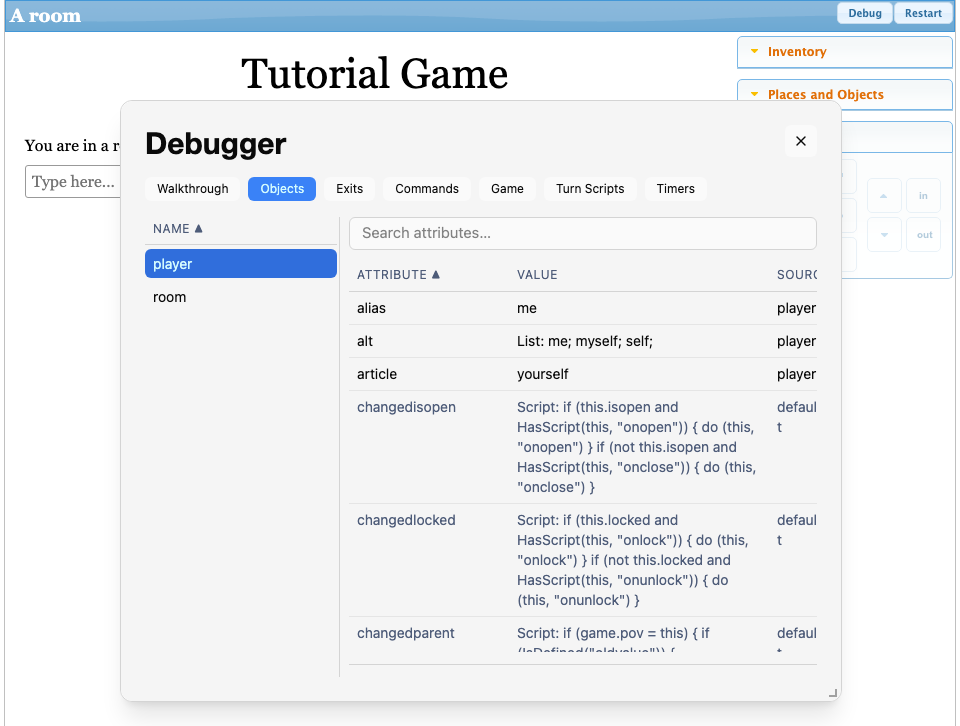
The Debugger doesn’t block the game, so you can leave it open while you play. It updates after every turn, so you can watch attributes change as you type commands. You can move it by dragging its title bar, resize it from the bottom-right corner, and drag the divider between the list and the attributes to make either side wider.
Next to “Debug” there’s a “Restart” button, which starts the game again from the beginning without closing the preview.
Viewing attributes
Section titled “Viewing attributes”The tabs along the top choose what to look at - objects, exits, commands, the game itself, turn scripts and timers. Select an item from the list on the left to see its current attributes.
Any attributes inherited from a type are shown in grey - there will usually be quite a few of these, as every object implicitly inherits the “defaultobject” type, which includes many default attributes. The Source column shows where each attribute comes from: the object itself, or the name of the type it was inherited from.
There can be a lot of attributes, so to find the one you want:
- type in the search box to show only matching attributes
- click a column heading to sort by that column, and click it again to reverse the order
- click “Name” above the list on the left to reverse its order
You can also drag the edges of the column headings to resize the columns.
Changing attributes
Section titled “Changing attributes”To change a value, click its row in the attribute table. A box appears at the bottom with the current value in it - edit it and click “Apply”.
What you type is treated the same as the right-hand side of a script that sets the attribute, so:
- strings need quotes, e.g.
"a rusty key" - booleans are
trueorfalse - numbers are just the number, e.g.
42 - objects are the object’s name, without quotes, e.g.
kitchen
You can also type an expression, such as player.parent or game.score + 10. If what you type isn’t valid, the error is shown under the box and nothing changes.
Setting an attribute this way behaves exactly as if a script had done it, so if the object has a change script for that attribute it runs too. For example, setting player.parent to another room runs the player’s changedparent script, which describes the new room just as if the player had walked there.
Only strings, numbers, booleans and object references can be changed. Lists, dictionaries and scripts can be viewed but not edited.
Changes only last until the game restarts - they aren’t saved to your game file. Once you’ve found a fix that works, make the change in the editor.
Running walkthroughs
Section titled “Running walkthroughs”The Walkthrough tab lists your game’s walkthroughs. Select one to see its steps, then click “Run” to play them. You can click “Cancel” to stop a walkthrough that’s running.
Reading error messages
Section titled “Reading error messages”When a script goes wrong, the player prints “[Sorry, an error occurred]” followed by a line starting “Error running script:” or “Error evaluating expression:”. The rest of that line is the useful part:
| Message | What it usually means |
|---|---|
| Unknown object or variable ‘x’ | Nothing called x exists at that point - a misspelt object name, a local variable that was never set, or a variable used inside a ShowMenu (...) { } block that belonged to the script outside it (see Asking the player) |
| Function did not return a value | A function with a return type reached the end of its script without a return - usually a missing return on one branch of an if |
| Too few parameters passed to X function | The call doesn’t match the function’s parameter list - see Functions |
| Error evaluating expression ‘…’: The input string ‘abc’ was not in a correct format | ToInt or ToDouble was given something that isn’t a number - typically what the player typed at a GetInput(). Check it with IsInt first |
The message quotes the expression that failed but not the line it was on, so to find it, open the script in the editor’s Code view and search for what it quotes. The script stops there, so anything you expected to happen after that point didn’t - which is often the more visible symptom.
Not everything that looks like a problem is an error. “I don’t understand your command.” means nothing matched what the player typed, and “I can’t see that.” means a command matched but the object it named isn’t in scope - see Scope for that one.