
Items that can be switched on and off
Lamps, radios, generators, control panels - anything the player can turn on and off uses the built-in Switchable feature.
Tick “Switchable: object can be switched on and off” on the object’s Features tab, then go to the Switchable tab that appears and change the dropdown from “Cannot be switched on/off” to “Can be switched on/off”.
That gives the object the TURN ON and TURN OFF verbs, adds “Switch on” and “Switch off” to its verb lists, and gives it a switchedon boolean attribute that Quest Viva keeps up to date.
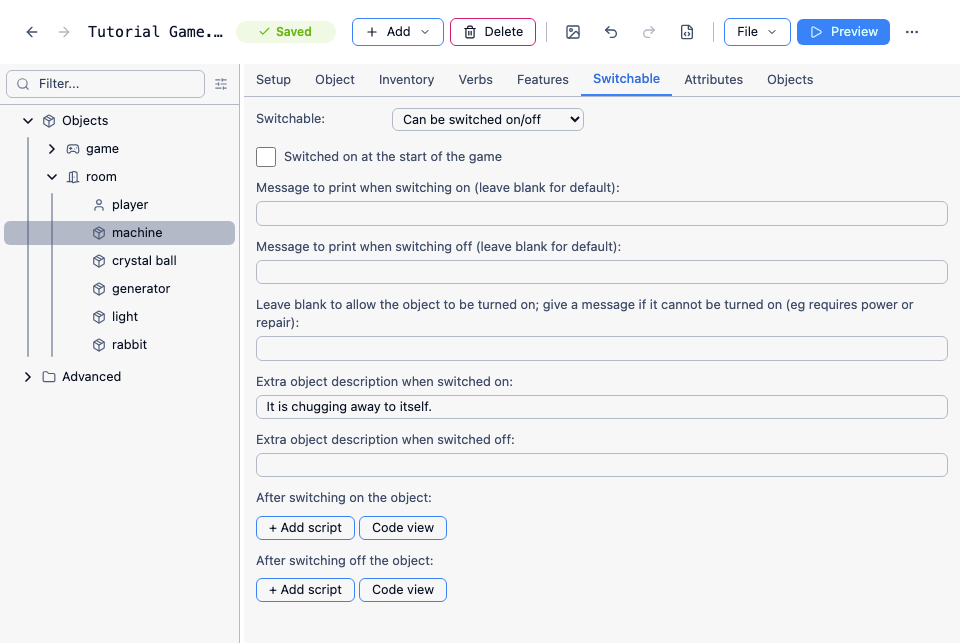
The Switchable tab
Section titled “The Switchable tab”| Option | What it does |
|---|---|
| Switched on at the start of the game | Sets switchedon to true before play begins. |
| Message to print when switching on | Replaces the default “You switch it on.” |
| Message to print when switching off | Replaces the default “You switch it off.” |
| Leave blank to allow the object to be turned on; give a message if it cannot be turned on | The cannotswitchon attribute. While it holds a string, TURN ON prints that string instead of switching the object on. |
| Extra object description when switched on | Text appended to the object’s description while it is on. |
| Extra object description when switched off | Text appended while it is off. |
| After switching on the object | A script that runs once the object has been switched on. |
| After switching off the object | A script that runs once it has been switched off. |
If the player tries to switch on something that is already on, they get “It is already switched on.” - you do not need to guard against that yourself.
Descriptions that change with state
Section titled “Descriptions that change with state”The two “Extra object description” boxes are the quickest way to reflect the state. With a description of “A funny looking machine.” and “It is chugging away to itself.” in the switched-on box:
> look at machineA funny looking machine. It is chugging away to itself.That always tacks a sentence on the end. For better prose, leave both boxes blank and use the text processor in the description itself, on the Setup tab - naming the object, since this is only reliable in scripts:
A funny looking machine{if machine.switchedon: chugging away}.Both boxes are ignored if you set the description to a script rather than text. There, test the attribute directly:
if (this.switchedon) { msg ("A funny looking machine chugging away.")}else { msg ("A funny looking machine.")}When it cannot be switched on
Section titled “When it cannot be switched on”Put a message in the “give a message if it cannot be turned on” box and the object refuses to switch on, printing that message instead - useful for something with no power, a missing part or a need for repair:
> turn on machineThe machine is dead; it has no power.Clear it from whatever script fixes the problem, and set it again if the object becomes unusable later - remembering that it stops the object being switched on but does not stop anything already running:
machine.cannotswitchon = nullmachine.cannotswitchon = "No power!"machine.switchedon = falseDo not use “After switching on the object” to refuse a switch-on. That script runs after the success message has been printed, so the player would see “You turn the machine on. You can’t turn it on, it has no power.” cannotswitchon is checked first, before any message.
Reacting to the switch
Section titled “Reacting to the switch”There are two ways to make the state matter.
Have other things check the attribute. Best for anything that happens at the moment the player acts, and safest, because the state lives in one place. A crystal ball that only works while the machine is running:
if (machine.switchedon) { msg ("You consult the crystal ball, and learn all sorts of stuff.")}else { msg ("The crystal ball is dark for some reason.")}Have the switch change other objects. Better for an ongoing situation, such as a generator powering a lamp and the machine. For the generator, “After switching on the object”:
light.lightsource = truelight.look = "A light, shining brightly."machine.cannotswitchon = nulland this in “After switching off the object”:
light.lightsource = falselight.look = "A light."machine.cannotswitchon = "No power!"if (machine.switchedon) { msg ("The machine stops when the power fails.")}machine.switchedon = falseNote the check before the last line: the message only appears if the machine was actually running.
Switching things from a script
Section titled “Switching things from a script”SwitchOn (object) and SwitchOff (object) change the state without printing anything - they simply set switchedon, which you can also do yourself. Either way the “After switching on/off” scripts still run, so anything hung off them stays consistent.
That makes a one-shot machine - one that does its job and turns itself straight off - easy. In “After switching on the object”:
CloneObjectAndMove (rabbit, game.pov.parent)SwitchOff (this)The player sees only the switch-on message and whatever the script prints. Delete “Switch off” from the verb lists on the Object tab: it is never on long enough to be switched off.
Changing the display verbs
Section titled “Changing the display verbs”The verb lists are not updated for you, so a switchable object offers both “Switch on” and “Switch off” whatever state it is in. To show only the one that applies, delete “Switch off” from both verb lists on the Object tab (the object starts off), then set the lists from the switch scripts:
this.displayverbs = Split("Look at;Switch off", ";")this.displayverbs = Split("Look at;Switch on", ";")If the object can be taken, keep “Take” in displayverbs and set inventoryverbs too, with “Drop” in place of “Take”. And if anything else can change the state - a generator cutting the power to the machine - set that object’s verbs there as well, because the switch scripts only run for the object that was actually switched.
Switch your object on and off several times in a row, and out of the expected order, to check descriptions and verbs still match the state.