
Writing code
Every script in your game exists in two forms at once: the row of boxes you fill in with the script editor, and the code behind them. Neither is the “real” one - the editor is just a way of looking at the same script. Anything you can build by clicking you can also type, and anything you type shows up in the boxes when you switch back.
After this page you’ll be able to read a script as code, write one yourself, and drop code that someone posted on Discord or the forum into the right place in your game.
| You want to | Use |
|---|---|
| Learn what commands exist, and what arguments they take | The script editor - the “+ Add script” list is the whole menu |
| Write a long or fiddly script quickly | Code view |
| Copy a script into a forum post, or paste one in | Code view |
| Rewrite a whole element, or several at once | The raw XML view |
Switching between the two views
Section titled “Switching between the two views”Wherever the editor shows you a script - a verb, a command, a function, a room’s “After entering the room” script - there’s a “Code view” button under it. Click it and the boxes are replaced with a text editor containing the same script. The button becomes “Visual editor”; click it again to go back.
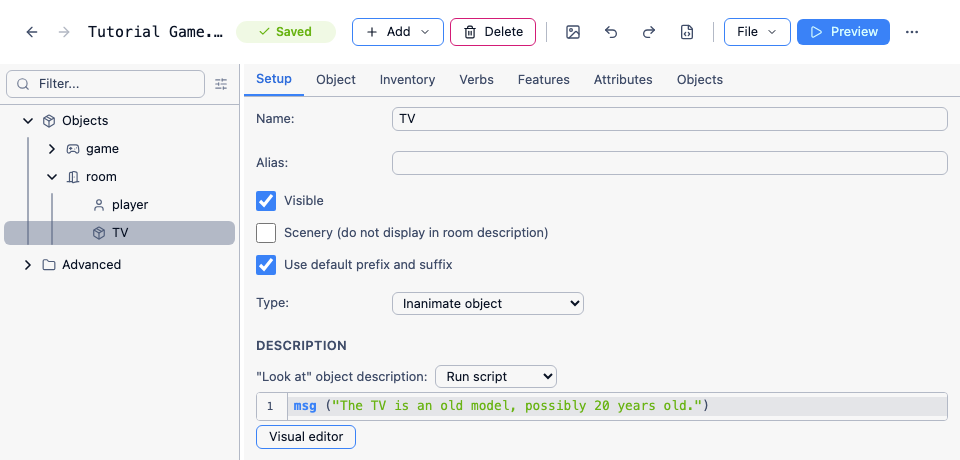
If you mostly work in code, turn on “Default scripts to code view” in Settings and every script opens as code.
Here’s a “watch” verb on a TV, as code:
if (GetBoolean(tv, "switchedon")) { msg ("A repeat of a quiz show you have already seen twice.")}else { msg ("The screen is blank.")}In the visual editor that’s the same four things in the same order: an “If” command with its condition, a message inside it, an “Else”, and a message inside that.
Statements
Section titled “Statements”A script is a list of statements, one per line, run from the top down. There’s no semicolon or other end-of-line marker - the line break is enough.
msg ("You crawl through the dark tunnel for some time, and arrive at...")MoveObject (game.pov, this.to)Blocks of script are wrapped in curly braces, and indented by two spaces. The editor will re-indent for you when you switch back to the visual editor, but do it yourself as you type - it’s how you spot a missing brace.
Statements come in two kinds:
- Script commands such as
msg,foreach,setandlist add. These are built into the language, and you’ll find them all in the script command reference. - Functions such as
GetBoolean,MoveObjectandSplit. These are ordinary functions - the engine ships hundreds, and you can write your own. See the function reference and Functions.
A function that returns a value goes inside an expression. One that doesn’t - like MoveObject - goes on a line of its own.
Attributes and variables
Section titled “Attributes and variables”An attribute is a named value stored on an object, and it’s how your game remembers anything. Read and write one with a dot:
hat.worn = trueplayer.strength = player.strength + 1msg (hat.alias)Every box on every tab in the editor is an attribute with a fixed name, and you can add your own on the Attributes tab. Attributes are saved with the game.
A variable has no dot and belongs to the script it’s in. You don’t declare it - setting it is enough - and it vanishes when the script ends:
count = 0foreach (obj, ScopeInventory()) { count = count + 1}msg ("You are carrying " + count + " things.")If something has to survive to the next turn, it has to be an attribute. game.something is the usual home for a value that doesn’t belong to any particular object.
Two names are worth knowing:
thisis the object the running script belongs to - the exit in the example above, or the object whose verb you’re editing. Usingthisrather than the object’s name means the same script works if you copy it onto another object.game.povis the current player object. Quest Viva can switch the player character mid-game, so library code always saysgame.povrather thanplayer. In your own game,playeris fine until the day you add a second player character.
Expressions and operators
Section titled “Expressions and operators”Anywhere a value is expected you can write an expression, and expressions are the same everywhere - in an if, in a msg, as a function argument.
| Operator | Does |
|---|---|
+ |
Adds numbers, joins strings, joins two lists |
- * / |
The usual arithmetic. Two integers divide to an integer: 7 / 2 is 3 |
% |
Remainder: 7 % 2 is 1 |
= <> |
Equal, not equal |
< > <= >= |
Comparison - also works on strings, alphabetically |
and or not |
Combine conditions |
in |
Whether a list contains an item, or a dictionary contains a key |
Multiplication binds tighter than addition, as you’d expect, and brackets override that: 2 + 3 * 4 is 14, (2 + 3) * 4 is 20. not binds very loosely, so not x = 3 means not (x = 3). When a condition has more than two parts, bracket it anyway - it costs nothing and saves an argument with yourself later.
and and or stop as soon as the answer is known, so this is safe even when wet has never been set on the object:
if (HasAttribute(obj, "wet") and obj.wet) { msg ("It is soaking.")}Strings
Section titled “Strings”Strings are in double quotes. A double quote inside a string has to be escaped with a backslash, and a backslash with another backslash:
msg ("The scarecrow looks at you. \"Howdy!\" he says.")Joining a string to a number converts the number for you, so "You have " + 3 + " coins" works. Joining a string to an object gives you something like Object: hat, which is never what you want in player-facing text - use GetDisplayName(hat) (“a bowler hat”) or GetDisplayAlias(hat) (“bowler hat”) instead.
Text you print also goes through the text processor, so you can put values into the text directly rather than concatenating:
msg ("The {hat.alias} costs {hat.price} gold.")Making decisions
Section titled “Making decisions”if, with any number of else ifs and an optional else:
if (not chair.parent = game.pov.parent) { msg ("There's nowhere to sit here.")}else if (not hat.worn) { msg ("You sit down. Nothing happens.")}else { msg ("You sit down. A clown appears and knocks the hat off your head.") hat.worn = false MoveObject (hat, game.pov.parent)}This “fail first” shape is worth getting into the habit of: test each thing that could stop the player, one at a time, with its own message, and leave the thing that actually happens for the final else. It’s easier to read than one enormous condition, and the player gets told which part they got wrong.
When you’re comparing one value against several, switch is tidier:
switch (game.weather) { case ("rain") { msg ("It is pouring.") } case ("fog", "mist") { msg ("You can barely see.") } default { msg ("The sky is clear.") }}Repeating
Section titled “Repeating”foreach walks a list or a dictionary, putting each entry into the variable you name:
foreach (obj, ScopeInventory()) { msg ("You dry out " + GetDisplayName(obj) + ".") obj.wet = false}for counts, and while repeats until a condition stops being true:
for (i, 1, 3) { msg ("Bell number " + i)}Make very sure something inside a while will eventually make its condition false, or the game will hang.
firsttime runs its block only on the first visit, and takes an optional otherwise:
firsttime { msg ("The door creaks horribly as it opens.")}otherwise { msg ("You open the door.")}Comments
Section titled “Comments”A line starting with // is ignored:
// The clown only appears once the hat is on.Pasting code you were given
Section titled “Pasting code you were given”Code from a forum post or from these pages is just text, so it pastes straight into a code view. The only question is which one.
- A function. Add a function from the “+ Add” menu and give it exactly the name in the post - capitals matter. On the Function tab, set Return type if the post says the function returns something, add each Parameter with the exact name and in the same order, then click “Code view” under Script and paste.
- The start script. Select the “game” element, go to the Scripts tab, and paste into the code view of the “Start” script. If there’s already something there, paste underneath it.
- A verb. Select the object, go to the Verbs tab, add the verb, change “Print a message” to “Run a script”, then use the code view.
- A script attribute. On the object’s Attributes tab, add an attribute, set its type to Script, and use the code view.
Pasted code is checked when you leave the editor box. If it doesn’t parse, nothing is applied - your game is not damaged - but the editor keeps the old script and doesn’t currently tell you why. So after pasting, switch to the visual editor and back: if you see the old script rather than what you pasted, the paste failed. Usual causes are a missing closing brace, a stray line of prose copied along with the code, and a curly “smart” quote, pasted from somewhere that autocorrected it, where a plain " belongs.
One thing to expect: code you wrote in the editor and code you write by hand often look different even when they do the same thing. The editor’s “Move object to current room” is MoveObjectHere (hat); by hand you’d probably write hat.parent = game.pov.parent. Both are correct, and both display fine in either view.
When something goes wrong
Section titled “When something goes wrong”Errors appear in the game transcript when the line actually runs, not when you save. A script with a typo in an expression will load and play happily until the player reaches that line.
| Message | Usually means |
|---|---|
Unknown object or variable '...' |
A misspelled object name, or a variable you set in a different script |
Unknown function '...' |
A misspelled function name, or one you meant to write and haven’t yet |
'obj.att' is null (it has not been set) and cannot be used in this calculation |
Arithmetic on an attribute that was never set - see Values and types |
Invalid token in expression at position (1:31) |
A quote or bracket problem inside a string or expression |
Expected 1 parameter(s) in script '...' |
Missing brackets round a script command’s arguments |
Error adding script attribute 'script' to element '...': Missing '}' |
An unclosed block. This one stops the game loading at all |
One mistake produces no error at all, which makes it the worst of the lot. player.parent.name is a string, and lounge is an object, so:
if (player.parent.name = lounge) {is always false, silently. Compare the objects (player.parent = lounge) or the strings (player.parent.name = "lounge"), not one of each.
The Debugger will show you what every attribute actually holds while the game is running, which is normally the fastest way to find out why a condition isn’t firing.
See also
Section titled “See also”- Script commands and Functions - the full reference
- Values and types - what a value can be, and what happens when an attribute isn’t set
- Functions - writing your own
- When scripts run - which script fires when
- Editing the raw XML - the whole game file as text