
Varying your text
When we wanted the TV to give a different answer depending on whether it was switched on, we wrote a script with an “if” in it. That works, and for anything complicated it’s what you want. But when all that changes is a sentence or two, there’s a much shorter way: the text processor.
The text processor lets you put instructions inside your text, in curly braces. Quest Viva works them out as it prints, so a description written once can still say something different each time the player looks at it.
Text that changes with the game
Section titled “Text that changes with the game”Remember Bob’s description. We set it up as a script, with an “if” to check his “alive” flag:
if (GetBoolean(Bob, "alive")) { msg ("Bob is sitting up, appearing to feel somewhat under the weather.")}else { msg ("Bob is lying on the floor, a lot more still than usual.")}Go back to Bob’s Setup tab and change his “Look at” description from “Run script” back to “Text”. Then type this in:
{either Bob.alive:Bob is sitting up, appearing to feel somewhat under the weather.|Bob is lying on the floor, a lot more still than usual.}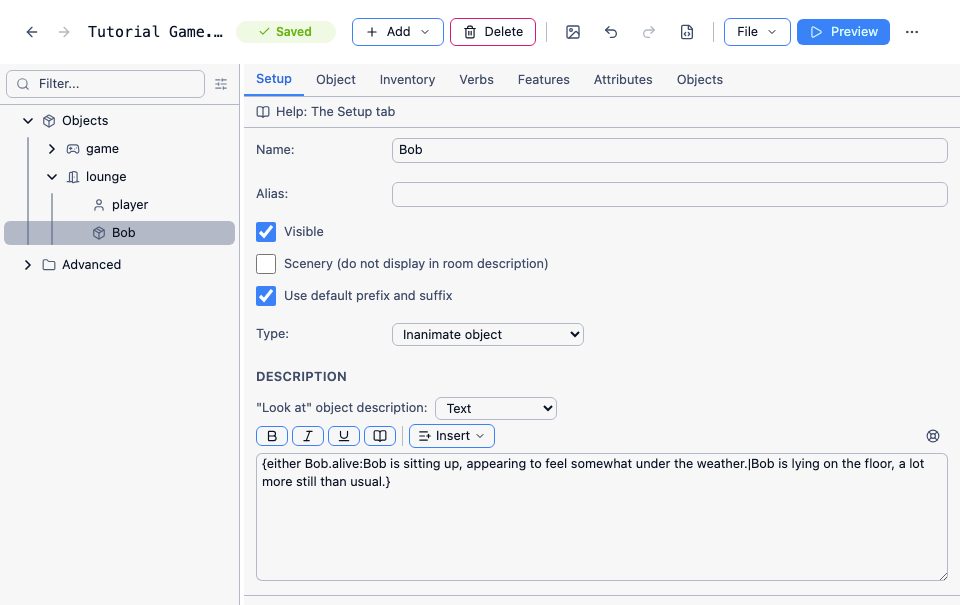
Play the game and look at Bob before and after using the defibrillator. It behaves exactly as it did before - but there’s no script any more, and the whole thing is one line.
{either ...} takes a condition, then the text to print if it’s true, a |, and the text to print if it’s false. Anywhere you could write an expression in a script, you can write it here. If you don’t need the “false” half, {if ...} is shorter:
The kitchen is cold and the stench of the overflowing bin makes you feel somewhat faint.{if window.isopen: A cold draught comes in through the open window.} The back door is in the south wall.Note the space inside the curly brace, before “A cold draught” - the text processor prints exactly what you give it, so you need a space there to separate the two sentences, and no space after the closing brace.
Text that changes because it’s been seen before
Section titled “Text that changes because it’s been seen before”{once:...} prints its text the first time only. It’s ideal for the little bit of scene-setting that’s right the first time the player arrives and tiresome on the fourth visit. Change the lounge description to:
This is quite a plain lounge with an old beige carpet and peeling wallpaper. {once:You have lived here for six years, and you still hate that wallpaper.}Play the game, walk to the kitchen and come back. The second sentence appears once and never again. ({notfirst:...} is the opposite - it prints every time except the first.)
Text that varies at random
Section titled “Text that varies at random”{random:...} picks one of the options you give it, separated by colons:
{random:A fat bee:A fat and determined bee:A bee the size of a small plum}, making its way round the kitchen with no obvious plan.A little of this goes a long way. Used on a description the player will read many times it makes the game feel alive; used everywhere it just makes the game feel unreliable.
Links the player can click
Section titled “Links the player can click”Many players would rather click than type. {object:...} turns a word into a link to an object, so that clicking it brings up that object’s menu of verbs:
This is quite a plain lounge with an old beige carpet and peeling {object:wallpaper}.That prints the object’s name. To use different words for the link, add them after a second colon:
...an old beige {object:carpet:carpet that has seen better days}.{command:...} does the same for a command, running it when the player clicks:
You could always {command:watch tv:see what's on}.Both only work in a text adventure - a gamebook has no objects, and uses {page:...} links instead.
Finding these in the editor
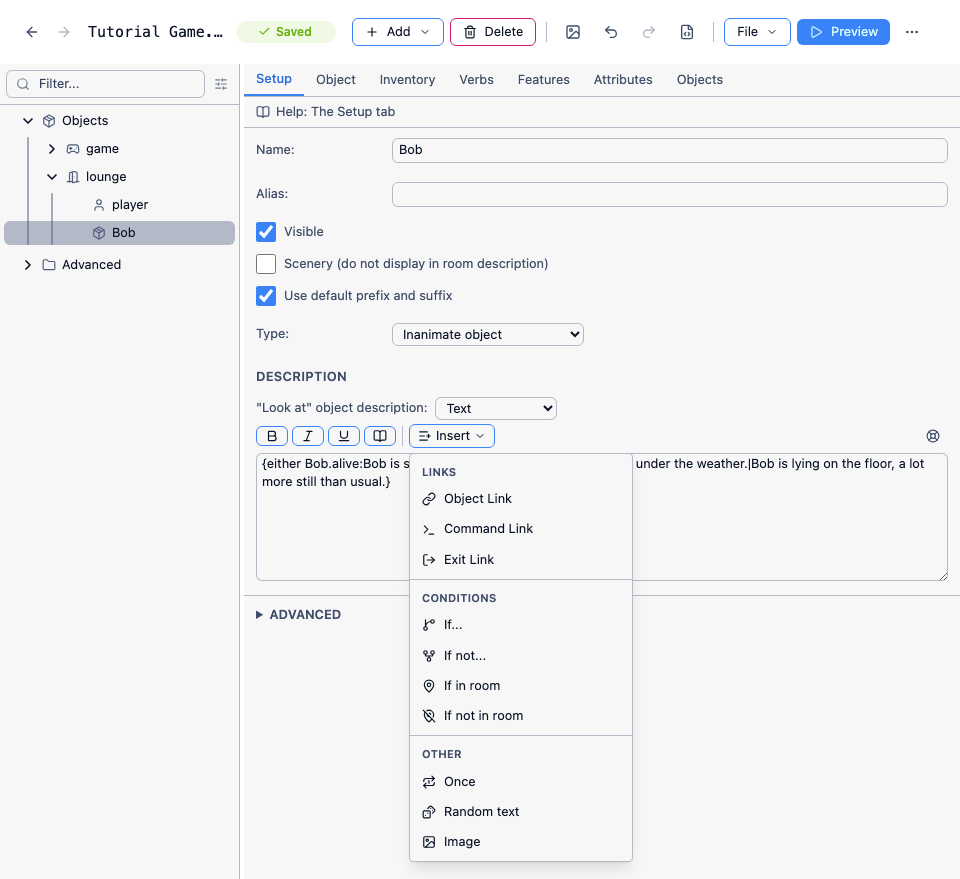
Section titled “Finding these in the editor”You don’t have to remember the syntax. Every large text box in the editor has a toolbar above it with an Insert menu, holding most of the directives above - the link ones ask you to pick the object or command from a list, so you can’t misspell the name.
And the rest
Section titled “And the rest”There is a good deal more: {select} for picking text by a number, {here} and {nothere} for whether an object is in the room, {b:...} and {i:...} for bold and italic, and {game.score} and friends for dropping an attribute’s value straight into a sentence. The text processor reference has the full list, and says exactly where in your game the text processor does and doesn’t run.
One thing worth knowing now: the text processor also runs on Quest Viva’s own built-in messages, which is how you change the wording of anything the game says without writing a script.