
How commands work
A command is one script that runs when the player types something matching a pattern you choose. SAY HELLO, ATTACK THE ZOMBIE, CLIMB and CHEAT SET score 100 are all commands.
The tutorial shows how to add one. This page explains the rest: what a pattern can contain, how Quest Viva decides which command the player meant, what happens when it can’t find the object, how to restrict a command to one room, and how to change or switch off the commands that come as standard.
| You want | Use |
|---|---|
| One script that works for any object, or for no object at all | A command |
| A different response for each object | A verb |
| Two objects in a fixed relationship, like TIE X TO Y | A command with two objects |
The Command tab
Section titled “The Command tab”Select Commands in the tree, under game, and click “+ Add Command”. (To add one that only works in a single room, see Commands for one room below.)
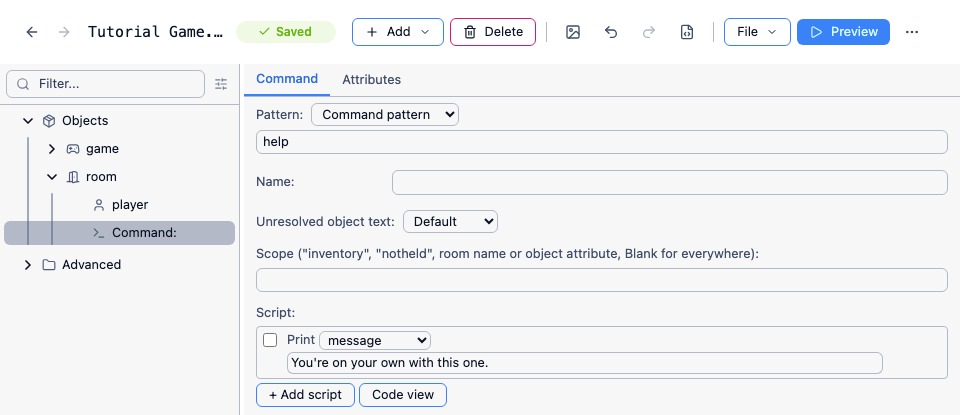
The tab has five fields:
- Pattern - what the player types. The dropdown beside it chooses between a “Command pattern” (the simple form described below) and a “Regular expression” (see Regular expressions in commands).
- Name - the command’s internal name. Leave it blank unless you need to refer to the command from a script, or you are deliberately replacing a built-in command of the same name.
- Unresolved object text - what to say when the player names an object the command can’t find. Leave it on “Default” for the standard “I can’t see that.”, or choose “Text” or “Run script”.
- Scope - where the command looks for objects. Blank means everything the player can see. See Scope for commands.
- Script - what the command does.
Patterns
Section titled “Patterns”A pattern is normally just the words you expect. Matching ignores capitals, so a pattern of help matches help, HELP and Help.
Separate alternatives with semicolons. There is a convention in interactive fiction that a question mark works as a synonym for HELP, so:
help;?Put as many synonyms in as you can think of - every one you leave out is a player typing something reasonable and being told the game doesn’t understand.
Placeholders
Section titled “Placeholders”To let the player name something, put a placeholder in the pattern. There are three kinds, and the name you give each one becomes a variable in your script:
| Placeholder | Matches | Your script gets |
|---|---|---|
#object# |
an object the player can see | the object |
#exit# |
an exit leading out of the room | the exit |
#text# |
anything at all | a string |
So instead of listing every zombie in the game:
attack #object#;strike #object#;hit #object#Now HIT UNDEAD matches the pattern, Quest Viva works out which object “undead” refers to here, and your script gets it in a variable called object.
You can have more than one placeholder in a pattern, as long as each has a different name. The name only has to start with object, exit or text - that is how Quest Viva knows what to match it against:
say #text_greeting# to #object_listener#If you use any other name, such as #whatever#, the command fails at runtime with “command variable names must begin with ‘object’, ‘exit’ or ‘text’”.
Placeholders are greedy: the first one takes as much of the input as it can. With greet #text1# for #text2#, typing GREET ANNA FOR BOB FOR CAROL gives text1 = “anna for bob” and text2 = “carol”.
Punctuation in a pattern
Section titled “Punctuation in a pattern”Full stops, question marks and brackets are literal characters, so what? matches “what” followed by a question mark. Other punctuation that means something in a regular expression - *, +, [, ], |, ^, $, \ - is not escaped, and behaves as a regular expression would. If you need one of those literally, switch the dropdown to “Regular expression” and write the pattern out properly.
How Quest Viva picks a command
Section titled “How Quest Viva picks a command”Every time the player types something, Quest Viva compares it against every command in scope. That includes verbs - a verb is a command underneath, with a pattern generated from the verb’s name.
“In scope” means: every command that sits under game rather than inside something, plus the commands inside the player’s current room, plus the commands inside whatever contains that room. Commands belonging to anywhere else are ignored.
If more than one command matches, Quest Viva picks between them on three criteria, in order:
- The strongest match wins. Match strength is the number of characters matched outside the placeholders. For
ATTACK ZOMBIE, a command with the patternattack zombiescores 13, and one withattack #object#scores 7, so the specific one wins. - A command in the room beats a general one.
- Otherwise, the command defined last wins. Your game’s commands are loaded after the built-in ones, so a command of yours will beat a built-in command with the same pattern.
That last rule is how you replace a built-in behaviour without touching it. A command with the pattern help;? beats the built-in HELP, and a command with the pattern hit #object# beats the built-in HIT verb, because both are ties on strength and yours is defined later.
When nothing matches
Section titled “When nothing matches”If no command matches at all, Quest Viva prints the UnrecognisedCommand message - “I don’t understand your command.” by default. You can change that message like any other.
Nothing else happens: the turn doesn’t count, so turn scripts don’t run and timers don’t advance.
For more control, use the game’s unresolvedcommandhandler script (tick “Show advanced scripts for the game object” on the game’s Features tab, then use its Advanced Scripts tab). It receives what the player typed in a string variable called command:
msg ("I have no idea what '" + command + "' means.")That lets you answer in your game’s own voice, keep a list of what players tried, or make a last-chance attempt to parse the input yourself. You don’t need to suppress turn scripts in it - they weren’t going to run.
Matching the object
Section titled “Matching the object”Choosing the command and finding the object are two separate steps, and Quest Viva never goes back. Once it has settled on the best-matching command, that is the command that will run - if the object can’t be found, it says so rather than trying the next-best command.
To match a word to an object, Quest Viva looks at each object in scope and compares the word against the object’s display name and each of its alternate names on the Object tab. A word matching the whole name is preferred; failing that, a word matching the start of the name, or the start of any word in it, will do. So a “rusty sword” answers to sword and rus. Leading “the”, “a” and “an” are ignored.
If nothing matches, the command’s “Unresolved object text” is printed, or “I can’t see that.” if you left it on Default. As with an unrecognised command, the turn doesn’t count. When the pattern has more than one placeholder, the word that failed is added in brackets, so the player can tell which one you mean: “I can’t see that. (fred)”. The player can then correct themselves with OOPS FRED, and the command is retried with the new word.
Choosing “Run script” for the unresolved text gives your script two variables: object, the text the player typed, and key, the name of the placeholder that failed.
msg ("You cannot find any '" + object + "' to dig up.")If several objects match, Quest Viva asks which one the player meant and carries on with their answer:
> attack rustyPlease choose which 'rusty' you mean:1: rusty sword2: rusty shieldIf exactly one matches, your script runs.
Writing the script
Section titled “Writing the script”The clearest way to build a command’s script is as a list of things that would stop it working, each with its own response, and the success at the end. Work out your checklist - for an attack command, that the target is an enemy, that it’s still alive, and that the player is armed - then turn each one into an else if:
if (not GetBoolean(object, "enemy")) { msg ("You should not attack " + GetDisplayName(object) + ".")}else if (not GetBoolean(object, "alive")) { msg ("It is already dead.")}else if (ListCount(FilterByAttribute(ScopeInventory(), "weapon", true)) = 0) { msg ("Not advisable without a weapon.")}else { msg ("You attack the " + GetDisplayAlias(object) + " with all your might.") object.alive = false}It is all one if, so the first failing check is the only message the player sees. Put the checks in the order that gives the most helpful answer - the player would rather hear “you have no weapon” than “it’s already dead”.
You don’t need a check for “is the object here?”: Quest Viva only resolved the object because it is in scope. (That changes if you set the command’s Scope to somewhere the player isn’t - see Scope for commands.)
Use GetDisplayAlias or GetDisplayName rather than object.name in anything the player sees. An object’s name is the internal one, which is often not what you want shown, and neutral language explains how to keep your responses grammatical for any object.
Commands for one room
Section titled “Commands for one room”Some commands only mean anything in one place - CLIMB in the room with the drainpipe, SWIM at the riverbank. Rather than testing the player’s location in the script, write two commands with the same pattern: a general one, and one that lives inside the room.
Add the room one from the room’s own Scripts tab: the Commands list at the bottom has its own “+ Add Command” button. The new command appears in the tree underneath the room. (If you created a command in the wrong place, its “…” menu in the tree has a “Move to…” option.)
Give both commands the pattern climb. The room one does the work:
msg ("You climb the drainpipe and go in through the window.")MoveObject (game.pov, bedroom)and the general one, added under Commands as usual, handles everywhere else:
msg ("There is nothing to climb here.")The room command wins while the player is in that room. For a second climbable room, add a second room command - no if needed anywhere.
A command in a room that contains other rooms works throughout that region, which is a tidy way to give a whole area its own vocabulary.
Commands that shouldn’t use up a turn
Section titled “Commands that shouldn’t use up a turn”By default, running a command’s script ends the turn: turn scripts run and timers count down. For a command that isn’t an action in the game world - a HINTS command, a command that lists the player’s achievements, anything meta - call SuppressTurnscripts in the script:
SuppressTurnscriptsmsg ("Try looking under things.")The built-in HELP, SAVE, UNDO and transcript commands all do this.
Changing the commands Quest Viva provides
Section titled “Changing the commands Quest Viva provides”Quest Viva already understands a large vocabulary before you add anything: movement (GO NORTH, N, IN, UP), LOOK, LOOK AT, TAKE, DROP, INVENTORY, OPEN, CLOSE, PUT X IN Y, TAKE X FROM Y, GIVE X TO Y, USE X ON Y, ASK X ABOUT Y, TELL X ABOUT Y, WAIT, XYZZY and the housekeeping commands HELP, SAVE, UNDO, QUIT, OOPS, AGAIN, RESTART, VERSION and TRANSCRIPT, plus around thirty verbs such as EAT, DRINK, CLIMB, PUSH, PULL, READ and SEARCH.
To see them all, click the tree view options button (next to the “Filter…” box) and select “Show Library Elements”, then look under Commands and Verbs. Library elements appear in grey and are read-only.
There are three ways to change one:
-
Only the wording. If all you want is different text, you probably want the template it prints, not the command itself.
-
Add your own version. A command of yours with the same pattern beats the built-in one, because it is defined later. Nothing else needs doing.
-
Replace it outright. Select the built-in command in the tree and click “Copy into your game” in the banner at the top. You now own a copy with the same name, which replaces the library’s version completely, and you can edit its pattern and script freely. This is also how you switch a command off: copy it in, set the Pattern dropdown to “Regular expression”, and enter
(?!), which is a regular expression that can never match anything.The same trick switches off a built-in verb. You rarely need it - your own command with the same pattern normally wins - but a regular expression that puts the verb word inside a capture group does not, because that lowers its match strength.
Overriding functions covers copying library elements into your game in more detail.
See also
Section titled “See also”- Verbs - when a per-object response is a better fit than a command
- Commands with two objects - TIE X TO Y and friends
- Handling multiple items (and all) - letting your command accept
ALL - Scope for commands - reaching objects that aren’t in the room
- Regular expressions in commands - patterns the simple form can’t express
- Changing the game’s messages - the parser’s own wording