
Score, health and money
Quest Viva has three built-in features for the numbers most games keep track of. Tick one on the game’s Features tab and it appears in the status pane, gets its own script commands, and - for health and money - adds a few extra boxes elsewhere in the editor. This page shows how to turn them on, change them from your scripts, award points only once, change how they’re displayed, and end the game.
| Feature | Attribute | Belongs to | Starts at | Status pane shows |
|---|---|---|---|---|
| Score | game.score |
the game object |
0 | Score: 5 |
| Health | health |
the player object | 100 | Health: 100% |
| Money | money |
the player object | 0, or the player’s “Starting money” | Money: $20 |
Turning them on
Section titled “Turning them on”Select the game object, go to the Features tab and tick “Score”, “Health” and/or “Money”. Each one you tick is added to the status pane automatically, if your game shows the panes on the right.
Ticking a feature also reveals the controls that go with it:
| Feature | Also adds |
|---|---|
| Health | “Script to run when health reaches zero” on the game’s Player tab, and “Change health by” on every edible object’s Edible tab |
| Money | “Format for money” on the game’s Player tab, “Starting money” on the player object’s Player tab, and “Price” on every object’s Inventory tab |
Changing the values
Section titled “Changing the values”Ticking a feature adds its script commands to the “Player” category when you add a script:
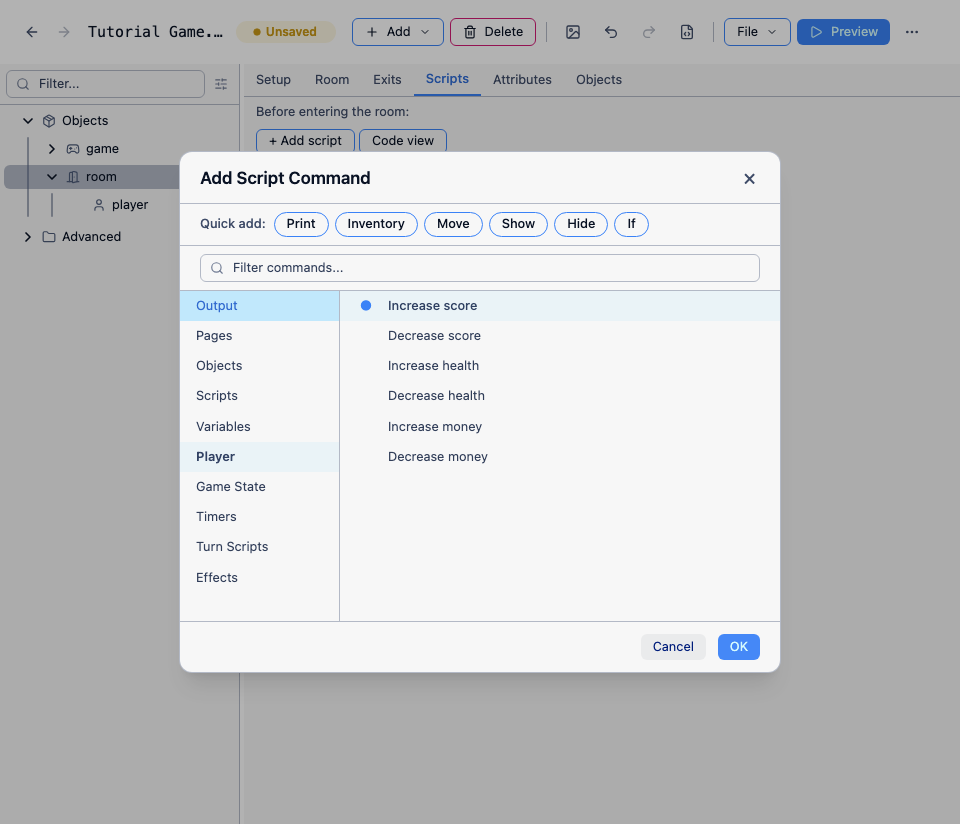
Each command takes the amount to add or subtract. Here is “Increase score”, set to add 5 to the score:

In code, these are:
IncreaseScore (5)DecreaseScore (5)IncreaseHealth (10)DecreaseHealth (10)IncreaseMoney (20)DecreaseMoney (20)These change game.score, and health and money on the current player object, game.pov. You can also read or set the attributes directly:
game.score = game.score + 5game.pov.health = game.pov.health - 5msg ("You have " + game.pov.money + " coins.")If a feature isn’t ticked, its attribute doesn’t exist. The script commands won’t appear in the editor, and calling one of the functions in code gives an error that tells you to tick the feature.
The score belongs to the game object, so it stays the same if the player switches to a different character. It is always zero at the start of the game, even if you’ve given the game object a score attribute of your own.
There is no built-in SCORE command for the player to type - the status pane shows the score. The next two sections show how to add one.
Awarding points only once
Section titled “Awarding points only once”IncreaseScore adds points every time it runs, so a command like JUMP would score again each time the player typed it. For points that belong to a single place in your game, wrap the command in “First time…” (in the “Scripts” category):
msg ("You jump into the air.")firsttime { IncreaseScore (5)}firsttime runs its script only once in the whole game.
A list of achievements
Section titled “A list of achievements”When the same achievement can be earned in more than one way - leaping the chasm and vaulting over it, say - firsttime isn’t enough, because each script has its own “first time”. Instead, give each achievement a name and keep a record of the ones the player has earned.
Select “Advanced” in the tree and click “Add Function”. Call it AwardPoints and give it two parameters, achievement and points. Leave “Return type” as it is, and give it this script:
if (not HasAttribute(game, "achievements")) { game.achievements = NewStringDictionary()}if (not DictionaryContains(game.achievements, achievement)) { dictionary add (game.achievements, achievement, ToString(points)) IncreaseScore (points) msg ("[Your score has gone up by " + points + ".]")}The function stores each achievement in a string dictionary on the game object, creating the dictionary the first time it’s needed. If the achievement is already in the dictionary, nothing happens.
Now call the function wherever the player earns points, with “Call function” in the “Scripts” category, or in code:
msg ("You leap across the chasm.")AwardPoints ("Crossing the chasm", 5)Every script that awards “Crossing the chasm” can call AwardPoints with the same name, and the player only gets the points once. For more about functions and parameters, see Functions.
To let the player see what they’ve scored for, add a command with the pattern score; full score; full and this script:
msg ("Your score is " + game.score + ".")if (HasAttribute(game, "achievements")) { foreach (achievement, game.achievements) { msg (DictionaryItem(game.achievements, achievement) + " for " + achievement) }}This gives output like:
> full scoreYour score is 6.1 for Jumping for joy5 for Crossing the chasmHealth
Section titled “Health”Health belongs to the player object - if you have more than one player object, each has its own health, and the status pane shows the current one’s. Health is a percentage. It starts at 100, can’t go above 100 and can’t go below 0: if a script sets it higher or lower, Quest Viva brings it back into range.
Health is always 100 at the start of the game (and when another player object becomes the player for the first time), even if you’ve given the player object a health attribute. To start lower, set it in the game’s start script, on the Scripts tab of the game object:
player.health = 60To set what happens when health reaches zero, go to the game object’s Player tab and fill in “Script to run when health reaches zero”. Usually you’ll print a message and end the game:
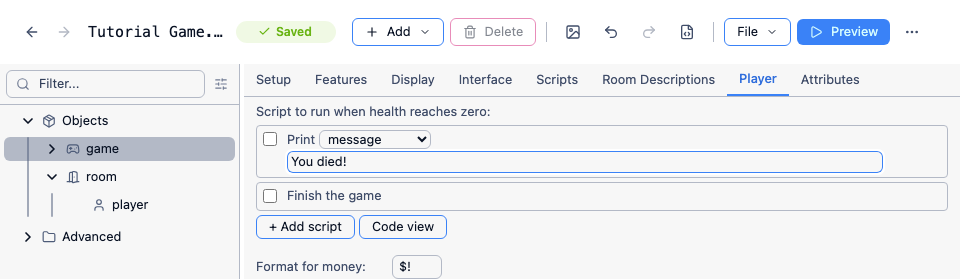
msg ("You died!")finishThe script runs as soon as health hits zero, part-way through whatever script took it there - so print the message first and don’t assume anything after the hit will still make sense.
Food, potions and the like can restore health. Make the object edible, then set “Change health by” on its Edible tab - see Items that can be eaten.
If you need a different maximum, such as hit points that go up as the player gains levels, don’t tick “Health”. Use your own attribute with a different name, and show it as a status attribute. Designing an RPG covers that choice in more detail.
Money belongs to the player object, so each player object has its own. It starts at zero, or at the “Starting money” you set on the player object’s Player tab. Money is always a whole number, so decide whether your unit is pounds or pence, dollars or cents. Nothing stops money going below zero, so check the player can afford something before taking the money.
How money is shown
Section titled “How money is shown”Set “Format for money” on the game object’s Player tab. The ! stands for the amount, so if the player has 235:
| Format | Shows |
|---|---|
$! (the default) |
$235 |
! gold |
235 gold |
The status pane uses this format, and so does the DisplayMoney function, which you can use in your own messages. The format can also control decimal places, thousands separators and negative amounts - see DisplayMoney.
Prices
Section titled “Prices”When “Money” is ticked, every object has a “Price” box on its Inventory tab. Quest Viva doesn’t do anything with the price itself - it’s there for your scripts to read as object.price. BUY and PURCHASE are already understood as verbs, so an object with no buy script of its own just tells the player they can’t buy it.
For a worked shop, with a stockroom the player can’t reach and BUY, BROWSE and SELL commands, see Setting up a shop.
Changing how they are displayed
Section titled “Changing how they are displayed”Each feature adds an entry to a status attribute list, with a format string in which ! stands for the value. The defaults produce “Score: 5”, “Health: 100%” and “Money: $20”. To use your own wording - “Hit points” instead of “Health”, say - replace the entry.
The obvious place to do that is the status attribute list on the Player or Attributes tab, but there’s a bug in this release: adding score, health or money there while the matching feature is ticked makes the game stop with “Error adding key” as it starts (#2356). Until that’s fixed, change the entry in the game’s start script instead, on the Scripts tab of the game object:
dictionary remove (game.povstatusattributes, "health")dictionary add (game.povstatusattributes, "health", "Hit points: !")That gives “Hit points: 100”. Score lives in game.statusattributes rather than game.povstatusattributes, because it belongs to the game object:
dictionary remove (game.statusattributes, "score")dictionary add (game.statusattributes, "score", "Points scored: !")Money is the exception: its value is already run through “Format for money” before the status format is applied, so Purse: ! with a money format of ! gold shows “Purse: 12 gold”. Change “Format for money” to change the amount itself, and the status entry only to change the label.
Your own values go in the same lists, and don’t hit the bug. Status attributes covers the format strings in full, including HTML and “out of” totals like Score: !/100.
Ending the game
Section titled “Ending the game”finish ends the game - “Finish the game” in the “Game State” category. The command bar disappears, “Game Over - This game has finished” replaces the panes, and the player can no longer save. finish prints nothing itself, so print whatever the player should read first:
msg ("The chasm swallows you whole.")finishIt doesn’t stop the script it’s in: anything after finish still runs, and still prints. Put it last.
See also
Section titled “See also”- Status attributes - showing any value in the status pane
- Setting up a shop - buying and selling with the money feature
- Designing an RPG - stats, levels and combat, where the built-in health feature isn’t enough