
Verbs
A verb is a command that always applies to one object - ROTATE DIAL, POLISH LAMP, SPEAK TO MARY. You add it to the object it belongs to, and Quest Viva takes care of matching the object’s name for you. A command is the more general tool: it can match anything the player types, including things that don’t involve an object at all, like JUMP or SING LOUDLY.
| You want | Use |
|---|---|
| An action on one or two specific objects | A verb on the object |
| The same action on lots of objects, handled the same way | A command |
| An action with no object, or with fixed words | A command |
The tutorial covers adding a verb, how it is stored as an attribute on the object, and calling it from a command with do. This page picks up where that ends.
The Verbs tab
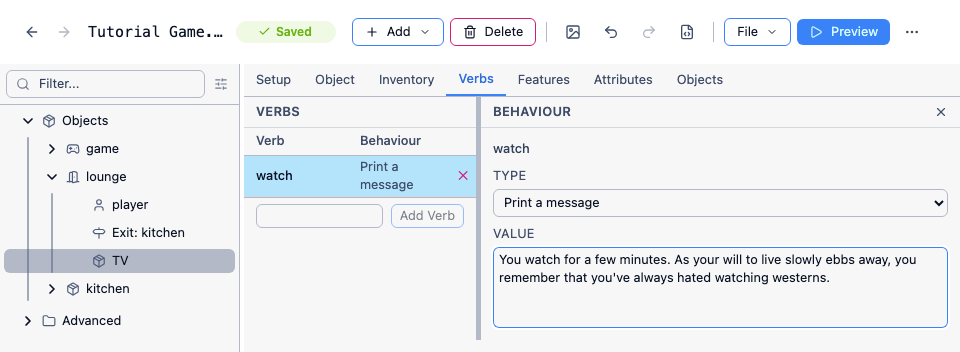
Section titled “The Verbs tab”Select an object - not a room, which has no Verbs tab - and go to its Verbs tab. The left-hand list has a Verb and a Behaviour column, with a box and an Add Verb button beneath it. Type the verb into the box and click Add Verb. The box suggests every verb already defined in the game, so you can pick a built-in one from the list instead of typing it.
Selecting a verb in the list shows the Behaviour panel on the right, where Type is one of:
- Print a message - the response is a string attribute. Use this for anything that just prints text. The Value box takes the text processor, so you can write
The {this.colour} dial clicks round a notch. - Run a script - the response is a script attribute. Use this when anything happens beyond printing text, or when you want to call the verb from somewhere else with
do (object, "verbname"). - Require another object - the response depends on a second object, as in
ATTACK GOBLIN WITH KNIFE. See Two-object verbs below.
Built-in verbs
Section titled “Built-in verbs”Quest Viva already defines about thirty verbs. Adding one of these to an object doesn’t create anything new - it just fills in that object’s response. The attribute a verb’s response ends up in isn’t always the verb text, so check this table (or the object’s Attributes tab) before you try to call one with do:
| Verb | The player can type | Attribute |
|---|---|---|
| buy | buy, purchase | buy |
| climb | climb | climb |
| drink | drink | drink |
| eat | eat | eat |
| hit | hit | hit |
| kill | kill | kill |
| kiss | kiss | kiss |
| knock | knock | knock |
| lick | lick | lick |
| lie on | lie on, lie upon, lie down on, lie down upon | lie |
| listen to | listen to | listen |
| lock | lock | lock |
| move | move | move |
| pull | pull | pull |
| push | push | push |
| read | read | read |
| search | search | search |
| show | show | show |
| sit on | sit on, sit upon, sit down on, sit down upon | sit |
| smell | smell, sniff | smell |
| speak to | speak to, speak, talk to, talk | speak |
| taste | taste | taste |
| throw | throw | throw |
| tie | tie | tie |
| touch | touch | touch |
| turn | turn | turn |
| turn on | turn on, switch on, turn x on, switch x on | turnon |
| turn off | turn off, switch off, turn x off, switch x off | turnoff |
| unlock | unlock | unlock |
| untie | untie | untie |
A few actions the player types as verbs aren’t verbs at all, because a tab or a feature already handles them: LOOK AT is the object’s Description on the Setup tab, TAKE and DROP are on the Inventory tab, OPEN, CLOSE and PUT are on the Container tab, USE and GIVE are on the Use/Give tab, ASK and TELL are on the Ask/Tell tab, and GO uses the room’s exits. The editor won’t let you add these as verbs, and tells you which tab to use instead.
ENTER is the odd one out. It is a real verb - the player can also type GO IN, GO INTO, GET IN or GET INTO - but its attribute is called enterverb rather than enter, so pick “enter; go in; go into; get in; get into” from the Add Verb box’s suggestions rather than typing “enter” yourself.
Verbs on types
Section titled “Verbs on types”A verb put on a type applies to every object that inherits it, which saves repeating the same response on a dozen objects. A type has no Verbs tab - it has a single Type tab, holding a list of attributes - so add the verb there: give the attribute the verb’s attribute name from the table above, and make it a string (to print a message) or a script. The verb itself has to exist first, so if it’s one of your own, add it to any one object to create it.
Write the script with this, so the same response works for every object of the type:
msg ("You kick " + GetDisplayName(this) + ". Nothing falls out.")Any object of that type can still override the response by adding the same verb on its own Verbs tab.
Running a verb from a script
Section titled “Running a verb from a script”do (sofa, "sit") runs a verb’s script, as in the tutorial - but only when that verb’s Behaviour is “Run a script”. On a “Print a message” verb it fails with “‘sofa’ has no action called ‘sit’”.
To run a verb exactly as the parser would, whatever its Behaviour, call the verb element itself. Its name is in the Name box on the Verb tab; the built-in “sit on” verb is called siton:
params = NewDictionary()dictionary add (params, "object", sofa)do (siton, "script", params)That prints the message, runs the script or falls back to the verb’s default, as appropriate.
Default responses
Section titled “Default responses”When the player uses a verb on an object that hasn’t implemented it, Quest Viva prints the verb’s own default - “You can’t kick it.” rather than “I don’t understand your command.” That default lives on the verb, not on the object, so there is one place to change it.
Verbs are stored as verb elements under game in the tree, below a “Verbs” folder. Quest Viva creates one automatically the first time you add a new verb to any object, which is easy to miss. Select it to get the Verb tab:
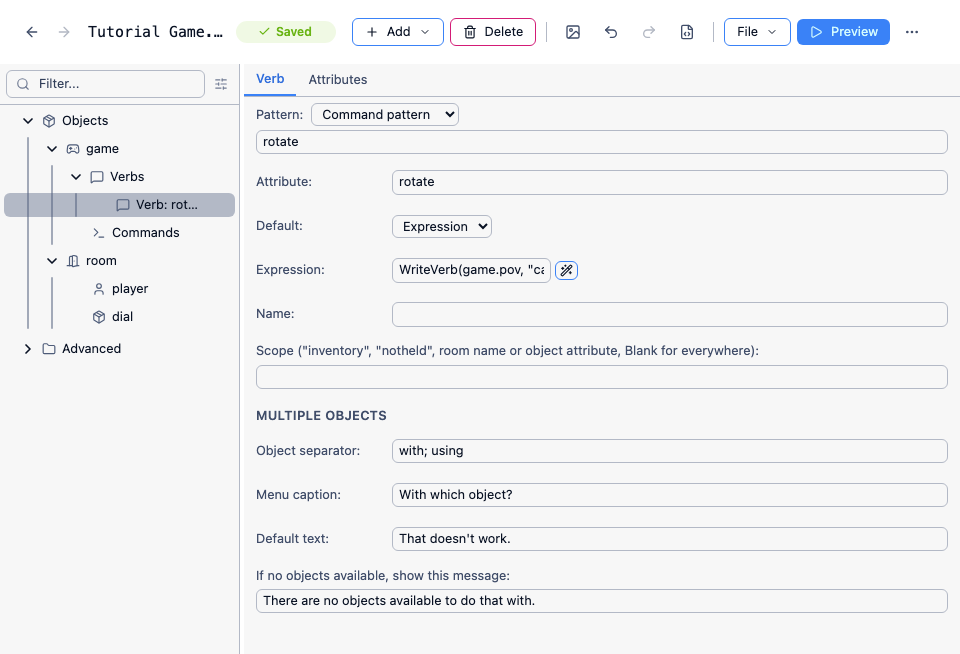
- Pattern - the text the player types. Separate synonyms with semicolons:
rotate; turn; twist. Switch the dropdown from “Command pattern” to “Regular expression” if you need one. - Attribute - the attribute the response is stored in on each object. Changing this on an existing verb orphans every response already written.
- Default - what to print when no object has implemented this verb. Choose Text for a fixed string, Template for the name of a template, or Expression for a script expression. Quest Viva fills in an expression for new verbs:
WriteVerb(game.pov, "can't") + " rotate " + object.article + ".", which gives “You can’t rotate it.” and adapts to the object’s gender and to the player character. - Name - the element’s own name, needed only if you want to refer to the verb element in code.
- Scope - which objects the verb prefers to match. Leave it blank for everywhere the player can see. See Advanced scope.
Two-object verbs
Section titled “Two-object verbs”Every verb can take a second object, using the words in Object separator (with; using by default) to join them: ATTACK GOBLIN WITH KNIFE.
Set the verb’s Behaviour on the object to Require another object. That gives you a list of entries, one per object, each with its own script. Add an entry by picking the second object from the dropdown and clicking Add, then expand it to write the script. Inside the script, this is the object the verb is on and object is the second object.
If the player names a second object that has no entry, Quest Viva prints the verb’s Default text (“That doesn’t work.”). To handle those yourself instead, add an entry, click Edit Key and rename it to default - that script runs for any second object you haven’t listed, with object set to whatever the player named:
msg ("You flail at the goblin with " + GetDisplayName(object) + ", to no effect.")If the player types just ATTACK GOBLIN, Quest Viva shows a menu of the objects around them, captioned with Menu caption (“With which object?”), or prints If no objects available, show this message if there’s nothing to offer.
Limits
Section titled “Limits”- A verb’s pattern can put the object anywhere -
give #object# a hugas well as plainhug- but the placeholder must be called#object#. The order matters, because Quest Viva takes the first alternative that matches: withhug; give #object# hug; give #object# a hug, typing GIVE MARY A HUG gets “I can’t see that. (mary a)”. Put the longer alternative first. - A regular-expression pattern can’t be combined with a second object, because Quest Viva appends the separator to the pattern itself. Use a command with two objects instead.
- A verb can’t reverse the order of its objects, so
USE KNIFE TO ATTACK GOBLINalso needs a command. - Quest Viva checks a new verb against existing commands, but only pattern by pattern. It will stop you adding “look at” on its own, and won’t stop you adding
look at; examineas one pattern - which quietly breaks LOOK AT for every object in the game.
Verbs the player can click
Section titled “Verbs the player can click”The verbs listed in an object’s pop-up menu and in the panes are a separate list, set on the object’s Object tab. Adding a verb doesn’t add it to that menu. See Object verbs.