
Moving objects during the game
As your game unfolds and the player interacts with your world, you may want to bring additional objects into play, or remove others. In this example, we’ll add a window to the kitchen. When the player opens it, a bee flies in. In the next section we’ll make this bee quite irritating.
Creating a hidden object
Section titled “Creating a hidden object”First, let’s create the “bee” object. We don’t want this object to appear anywhere when the game starts, so create it outside of a room. It’s best to create a special room, perhaps called “nowhere” or “limbo” or “offstage”, and keep all your hidden objects there. Give the bee a suitable description.
Bringing the object into play
Section titled “Bringing the object into play”Now, add a window object to the kitchen and give it a sensible description.
We want the player to be able to open the window. That’s a job for the Container tab, as in Containers, locks and doors - but a window isn’t really a container, because you can’t put anything in it. That’s what the Openable/Closable container type is for: an object that opens and closes and holds nothing. Tick “Container” on the window’s Features tab, then choose “Openable/Closable” on its Container tab.
Now add script commands to “Script to run when opening object”. This script replaces Quest Viva’s own handling of OPEN WINDOW rather than running alongside it, so the first thing it has to do is open the window itself, and then say so:
- Open object: window
- Print a message: “You open the window, and a bee flies into the kitchen.”
- Move object “bee” to “kitchen”
“Open object” is in the Objects category, below the “Advanced” divider. It only sets the object’s state - it doesn’t print anything - which is why we print our own message on the next line.
There’s a matching “Script to run when closing object”, but we don’t need one: leave it empty and Quest Viva closes the window for us, with its usual message.
Launch the game and go to the kitchen. Open the window and verify that you can now look at the bee.
> open windowYou open the window, and a bee flies into the kitchen.
> close windowYou close it.
Checking if the object is already there
Section titled “Checking if the object is already there”What if the player closes the window and then opens it again? They’ll be told that the bee has flown in again, which doesn’t make sense as it is already there.
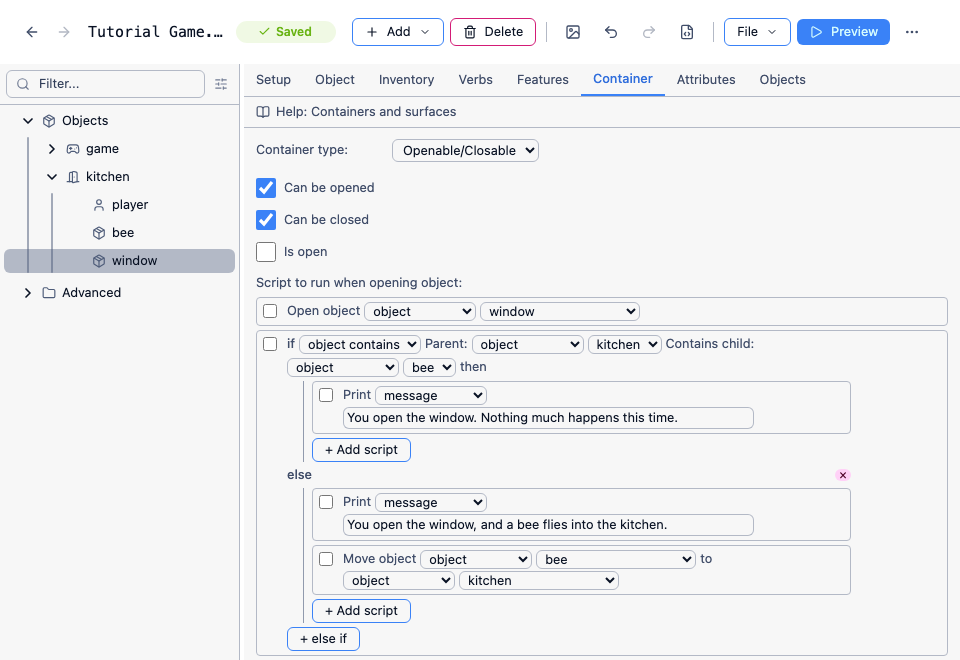
One way to get around this might be to use an object flag, as we’ve done before. However it’s even simpler just to check if the bee is in the kitchen. Add an “if” command and choose “object contains”. Now you can select “kitchen” as the parent and “bee” as the child.
For the “then” script, print a message such as “You open the window. Nothing much happens this time.”
Now cut and paste the existing “print a message” (“You open the window, and a bee flies in…”) and “move object” to the “Else”. Leave “Open object” where it is, above the “if” - the window should open either way.
Removing an object during play
Section titled “Removing an object during play”As well as bringing an object into play, you can also remove an object from play using the “Remove object” command from the Objects category. This will set the object’s parent to “null”, so you can always bring it back into play again later. To destroy an object entirely, use the “Destroy an object” command - the object will be completely removed from the game. It is more efficient to simply remove the object from play though - it is less work for Quest Viva to simply unset the object’s parent than it is to remove all the object’s attributes and destroy it - so it is recommended that you use “remove” in preference to “destroy”.
As an exercise, add an “apple” object, with a sensible description. Add an “eat” verb to the object which will print a message saying “You eat the apple. Tasty.” and then remove the apple from play (though it is worth noting that items can be set to be edible via the Edible tab).