
Changing the player object
When you create a game, it has one object called player, which represents the player’s point of view (POV). Everything the player object carries is the player’s inventory.
You can have more than one object that the player can become, and switch between them during the game. The game is still for one player, but they might explore the same story from different characters’ points of view, choose a character at the start, or take over someone else after solving a puzzle.
Each player object has its own location, inventory and attributes. That includes health and money if you use the built-in features, and any status attributes you set on the player object: the status pane always shows the values for the current player object. Values that belong to the whole game, like the score, should be on the game object, so they stay the same whoever the player is.
Making an object the player
Section titled “Making an object the player”Before an object can become the player, set it up in the editor. On the object’s Features tab, tick “Player: player can become this object”. Then on its Player tab, set “Player” to “Can be a player”. (The object called player is already set up this way.)
To start the game as a different object, select the game object, go to its Player tab and choose the “Player object”. If you don’t choose one, the game starts as the object called player.
Some of these settings are under “Advanced” at the bottom of the tab.
Player or character?
Section titled “Player or character?”Quest Viva treats an object differently depending on whether it’s the current player. Suppose you have two player objects, Mary and Bob, who can be in the same room. When the player is Mary, LOOK AT MARY should describe her from the inside (“You are…”), and LOOK AT BOB should describe Bob as someone else (“Bob is…”).
So a player object has two sets of names and descriptions. The settings on its Player tab - “Alias”, “Gender”, “Article”, “Possessive”, “Other names” and the “Look at” object description - are used while it’s the player. The ones on its Setup tab are used the rest of the time, just as for any other object.
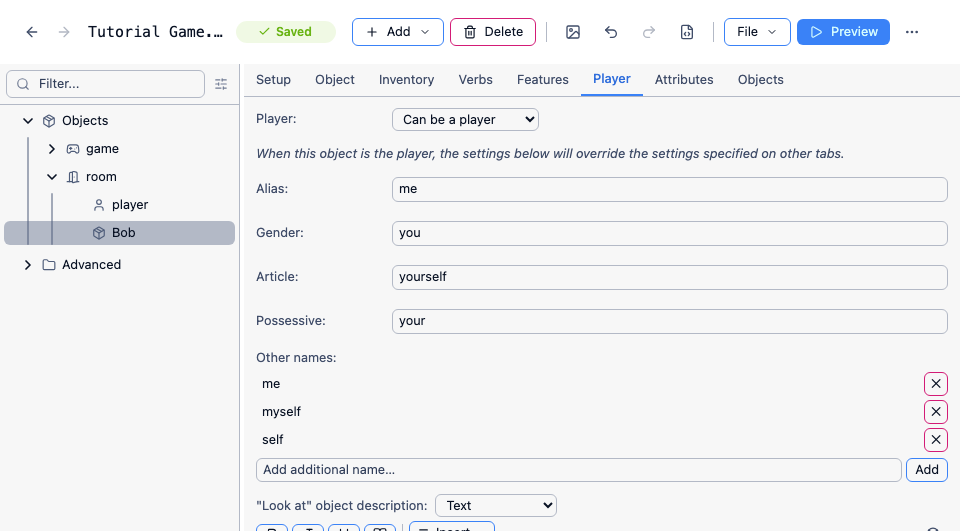
Say this object is Bob. On the Player tab, set up how he appears when the player is Bob; on the Setup tab, set up how he appears when the player is someone else. On the Setup tab, also set his type to “Male character (named)”, so that Mary sees “Bob” rather than “a Bob”.
This also applies to the original player object. If the player can switch away from it, give it an alias on its Setup tab, or the other characters will see “a player” standing in the room.
game.pov
Section titled “game.pov”The game object’s pov attribute holds the current player object. You can use it to check who the player is. For example, Bob’s description could change depending on who’s looking at him. The description on his Player tab is only used when the player is Bob, so it can stay as it is. On his Setup tab, set the description to “Run script”, and use:
if (game.pov = Mary) { msg ("Bob is that creepy guy with an unhealthy obsession with defibrillators.")}else { msg ("Bob is just some guy.")}Use game.pov in your scripts, not player
Section titled “Use game.pov in your scripts, not player”Once the player can change, any script that refers to the player object by name is a bug waiting to happen. player is just the name of one object - it always means that object, whoever the player currently is.
Suppose a trapdoor script moves player to the cellar, and the player is currently Bob:
msg ("The floor opens beneath you!")MoveObject (player, cellar)The message appears, but it’s the original player object that drops into the cellar. Bob stays where he is. If your game has no object called player at all, the script gives an error instead.
Use game.pov wherever you mean “whoever the player is now”:
msg ("The floor opens beneath you!")MoveObject (game.pov, cellar)The same goes for anything else about the player - game.pov.parent for the room they’re in, game.pov.money, game.pov.health, ScopeInventory() for what they are carrying, and so on. Examples elsewhere in these docs often use player to keep things simple, so change them to game.pov when you copy them into a game with more than one player object.
Changing game.pov
Section titled “Changing game.pov”To change the player object, use the “Change player object” script command in the “Objects” category. In code, that’s ChangePOV:
ChangePOV (Bob)The player becomes Bob and sees a description of Bob’s current location. Bob keeps his own inventory, location, health and money; the previous player object stays where it was, with everything it was carrying.
You could change the player object after asking a question in the game’s start script, in response to a command, or when the player solves a puzzle.
Always use ChangePOV rather than setting game.pov yourself. Setting game.pov does switch the player object, but it doesn’t describe the new location or update the map, so the player isn’t told where they now are.