
Sound and video
A creaking door, a bar of music as the player steps into the throne room, or a video cutscene between chapters. Quest Viva has script commands for sound, and one for embedding a YouTube video; anything beyond those is a few lines of HTML.
| You want | Use |
|---|---|
| A sound effect | “Play a sound” |
| Music that keeps going | Play a sound with Loop set to yes |
| The script to pause until the sound ends | Wait for sound to finish |
| Two sounds at once, or volume control | Your own <audio> tag |
| A YouTube video | “Play YouTube video” |
| Your own video file | Your own <video> tag |
Playing a sound
Section titled “Playing a sound”In any script, click + Add script, choose the Output category and then Play a sound. You get a filename box with an Upload… button beside it, and two options:
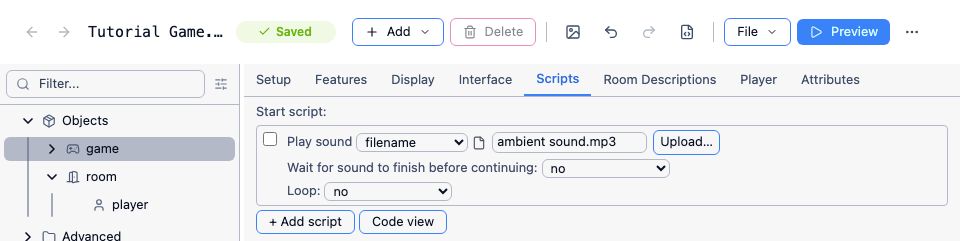
In code, the two options are the second and third arguments - wait, then loop:
play sound ("door-creak.mp3", false, false)The box offers .mp3, .wav and .ogg. MP3 is the safest choice: every browser plays it, and the files are small. WAV plays everywhere too but is many times the size for the same sound, which matters when everything you upload counts against the game’s size. Ogg support varies between browsers, so use it only if you know who’s playing.
Sounds are uploaded and packaged exactly like pictures - see Adding picture files.
Waiting for a sound to finish
Section titled “Waiting for a sound to finish”Tick Wait for sound to finish before continuing (the second argument, true) and the rest of the script is held until the sound ends. The player can’t type in the meantime - the command box disappears and comes back when the sound does.
msg ("You put your shoulder to the door.")play sound ("door-creak.mp3", true, false)msg ("It gives, and you stumble into the dark.")That’s what you want for an introduction, or to let a line of speech finish before moving the player somewhere else. Keep the sound short: the game is frozen for as long as it plays.
Looping and stopping
Section titled “Looping and stopping”Set Loop to yes (the third argument, true) and the sound repeats until something stops it - handy for ambient noise or background music:
play sound ("rain.mp3", false, true)Stop it with Stop sound in the same category:
stop soundTwo things are worth knowing. Quest Viva plays one sound at a time: starting another sound stops the one that’s playing, so a looping background track is silenced the moment a door creaks. And you can’t tick both Wait and Loop - the game would wait forever for a sound that never ends, and it stops you with an error saying so.
So a room with ambient sound usually looks like this. On the room’s Scripts tab, put the sound in After entering the room, with Loop set to yes, and Stop sound in After leaving the room:
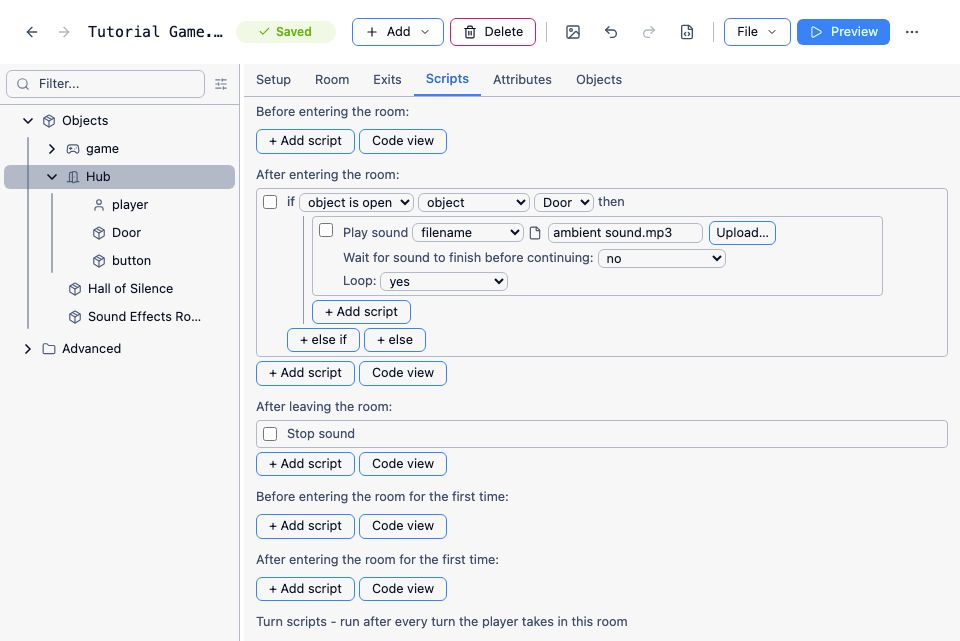
A complete worked example - ambient sound in one room, silence in another, a sound that plays before the player moves, and a button that makes a noise when pressed - is in the source of PlayAudioExample.aslx.
Autoplay: why the first sound may not play
Section titled “Autoplay: why the first sound may not play”Browsers don’t let a page start making noise until the player has interacted with it - clicked something, or typed. This applies on desktops as well as phones, and it hits games that play a sound in the start script, before the player has done anything at all.
Quest Viva’s player handles this for you: if the game contains sound files or uses Play a sound, and the browser hasn’t registered any interaction yet, the player shows a Begin button on the loading screen instead of starting straight away. Clicking it is the interaction the browser wants, and sound works from then on.
You don’t need to do anything about this, but it’s worth knowing why a game that plays music at the start asks the player to click first. Sounds triggered by anything the player types or clicks are never affected.
More than one sound at a time
Section titled “More than one sound at a time”When you need background music and sound effects, or you want to control the volume, add your own HTML <audio> element instead of using Play a sound. It runs independently, so it plays alongside anything Play a sound is doing:
msg ("<audio id='music' src='" + GetFileURL("theme.mp3") + "' autoplay loop></audio>")GetFileURL turns the filename into an address that works however the game is played. The id gives later scripts something to aim at:
JS.eval ("document.getElementById('music').volume = 0.3;")JS.eval ("document.getElementById('music').pause();")JS.eval ("document.getElementById('music').play();")Add controls instead of autoplay and the player gets a play button to press themselves, which is the simplest answer to the autoplay rules if you’d rather not rely on the Begin screen:
msg ("<audio src='" + GetFileURL("theme.mp3") + "' controls></audio>")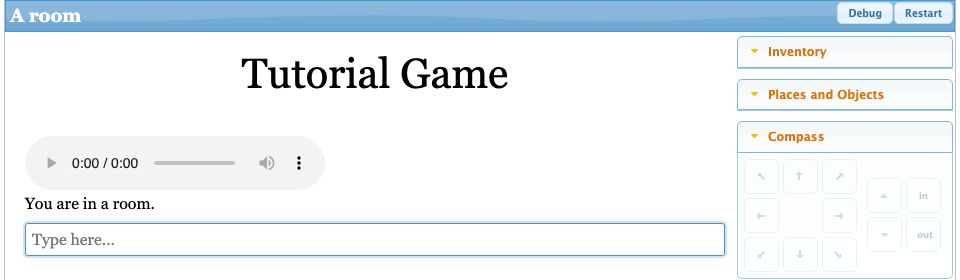
One catch: an <audio> element lives in the game text, so clearing the screen removes it and the sound stops. A sound started with Play a sound keeps going, because it isn’t part of the text. If your music has to survive a screen clear, use Play a sound for it and the <audio> element for the effects.
A YouTube video
Section titled “A YouTube video”Play YouTube video in the Output category embeds a video in the game text. It takes the video’s ID - the part of the YouTube address after v=, so for https://www.youtube.com/watch?v=7vIi0U4rSX4 the ID is 7vIi0U4rSX4:
ShowYouTube ("7vIi0U4rSX4")The video appears where the text has got to, set to play automatically, and scrolls away with the text like anything else. Nothing stops you embedding several.
The embed is a fixed 425 by 344 pixels, which is wider than a phone screen - the page ends up scrolling sideways. Until that’s fixed, write the embed yourself when phone players matter. This version fills the width it’s given, at the usual widescreen shape, whatever the screen:
msg ("<iframe src='https://www.youtube.com/embed/7vIi0U4rSX4' style='width:100%; aspect-ratio:16/9; border:0;' allow='autoplay; fullscreen' allowfullscreen></iframe>")Add ?autoplay=1&rel=0 to the address to match what Play YouTube video does - start playing at once, and don’t suggest other people’s videos at the end. Autoplay here is subject to the same browser rules as sound.
Either way, the video is fetched from YouTube while the game is played, so it needs an internet connection and it disappears if the video is ever taken down. There’s no equivalent command for Vimeo.
Your own video files
Section titled “Your own video files”There’s no script command for playing a video file, so upload it through Manage assets on the toolbar and write the tag yourself:
msg ("<video src='" + GetFileURL("cutscene.mp4") + "' controls style='width:100%; max-width:640px;'></video>")Use MP4 (H.264) - it’s the one format every browser plays. Don’t use Ogg Video: Safari won’t play it at all.
Unlike pictures, a video isn’t scaled to fit the text automatically, so always set a width as above: width:100% keeps it inside the text column on a phone, and max-width stops it stretching absurdly wide on a desktop.
controls gives the player play, pause and volume. You can add autoplay and loop as well, and control the video from a script exactly as with <audio> - give it an id and use JS.eval. Clearing the screen removes it, the same way.
Video files are big, and everything you upload counts towards the game’s size - see Size limitations. A few seconds of video can be more than the entire rest of the game, so consider hosting the game yourself, where there’s no limit.
See also
Section titled “See also”- Pictures
- Customising the interface - what else
JS.evalcan reach - JS functions - the full list, including
AddYouTube